Invoices — Viewing, Searching, Downloading and Sending by Email
All the invoices of the account, as they are in the PBX: filter by period and status, search for an invoice, see at once how many are awaiting payment, open the full details, and view the official invoice file, download it or send it by email.
Where it is and who it's for
In the side menu, in the Advanced group, click Invoices.
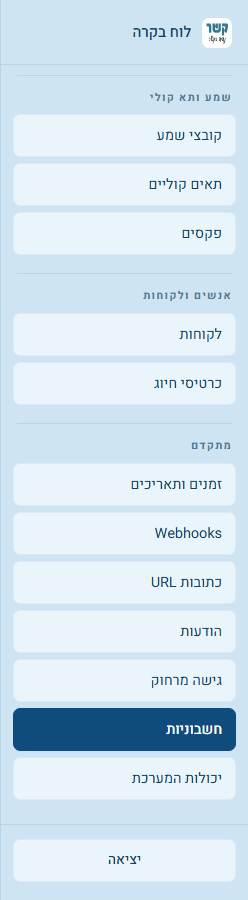
The screen
At the top of the screen is a row of controls:
- Period — Last 3 months, Last year (the default) or All time.
- Search — an invoice number, description or amount. The results are filtered as you type.
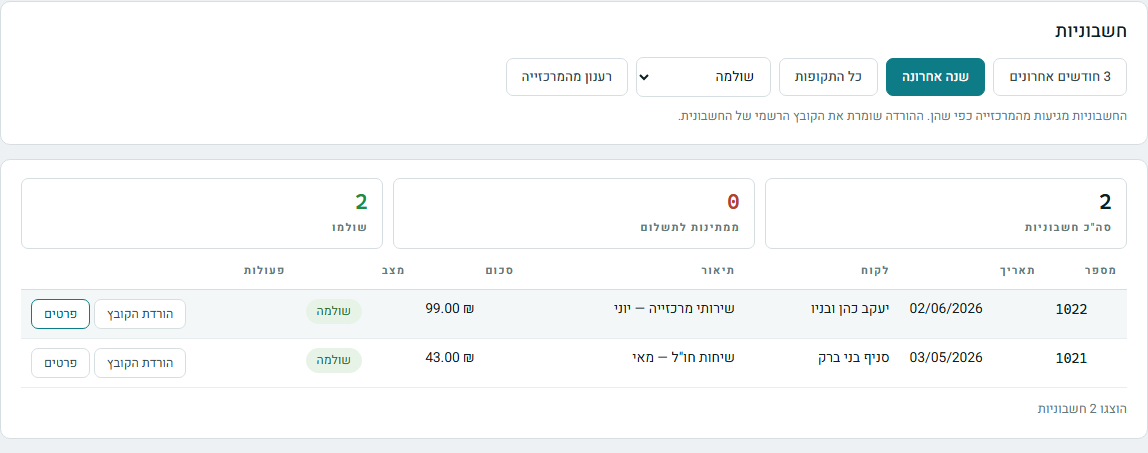
- Status — "All statuses", or a single status (step 5).
- Refresh from the PBX — reloads the list.
Below them are three counts: Total invoices, Awaiting payment and Paid. The counts refer to the invoices currently shown, after filtering and searching.
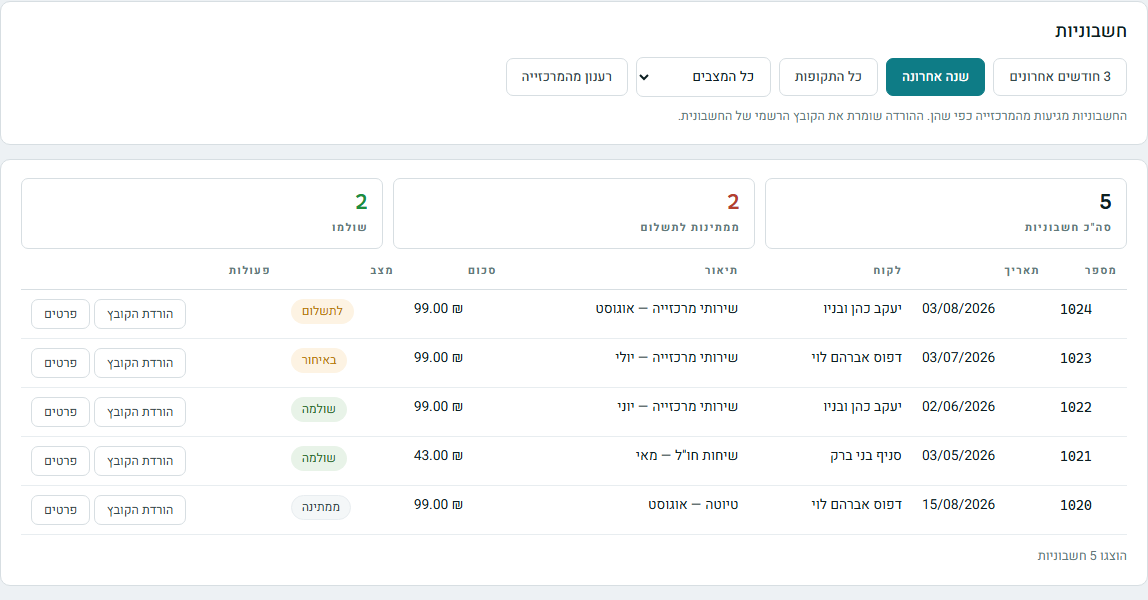
The table itself shows, for each invoice:
- Number — the invoice number.
- Date — when it was issued.
- Customer — who it was issued to.
- Description — what the invoice is for.
- Amount — the total amount.
- Status — paid, due, and so on. More on the statuses below.
- Actions — Details, View, Download, and for users with permission — Send by Email.
Above the table there are Sort, Filter by… a column, and a switch between Table and Cards view, and the ⏷ symbol at the top of each column filters by it. Below the table it says how many invoices are shown.
Invoice details, viewing and downloading
Details opens the whole invoice below the row: at the top, the invoice number, the customer, the issue date, the amount and the status. Below that, in three groups:
- Dates — when it was issued, when payment is due, the billing period, the call details period, and when it was paid (if it was paid).
- Amounts — the invoice amount and the charge type.
- Identification — the invoice number, the system ID, the customer, and whether it was replaced by a new invoice.
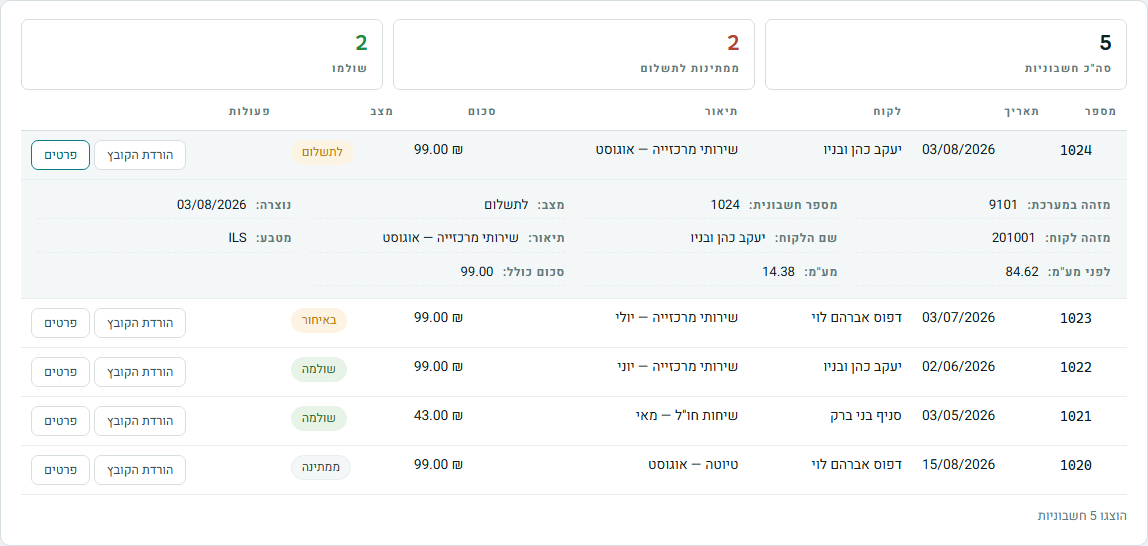
At the bottom of the details:
- View File — opens the official invoice file in a new tab. If the browser blocks the tab, a message appears — use "Download".
- Download — saves the file to your computer, exactly as it is stored in the PBX. This is the file you submit to your bookkeeper.
- Send to Customer's Email and Send to Another Address… — in the next step.
The same View and Download are also right in the row, without opening the details. Clicking "Details" again closes them.
Sending an invoice by email
There are two ways, and both require permission to send by email (without it, the buttons are grayed out or do not appear):
- Send to Customer's Email (in the invoice details) — the system takes the address from the customer record in the PBX and asks "Send invoice … to …?". Confirm, and the invoice is sent. If the customer has no email address, a form for typing an address opens instead.
- Send by Email in the row, or Send to Another Address… in the details — a box opens below the row with the address from the customer record. You can change it, or choose one of the "Other addresses in the customer record", and then click Send.

After sending, the message "The invoice was sent to" appears with the address. Nothing is sent to an invalid address, and a matching message appears.
Invoice statuses
The status column shows where each invoice stands: Payment due, Overdue, Paid, Prepaid, Pending, Queued to send, Approved, Payment declined, Cancelled or Replaced by a new one. "Payment due", "Overdue" and "Payment declined" are highlighted in color and counted in "Awaiting payment", so they are not missed. The status filter at the top of the screen shows only invoices in the status you chose.
Where the data comes from
The data comes from the PBX as is — the screen does not change it, it only counts and filters what is shown. If a new invoice was just created and does not appear, Refresh from the PBX brings the fresh list. If the list is empty, check the period and the status filter — for example, try "All time".
The credit card used for charges, when and how much is charged, and open payment requests are shown on the Payment Details screen, in the "Advanced" group next to the invoices. That is also where you update the card — on the payment company's secure page, without a charge.
Stuck? Does something on the screen not behave like in the guide? Write to us through the Contact Us page. We'll be glad to help, and also to hear what's missing from the guide.