Guide · Automatic Transcription to Email
Automatic transcription to email: how to turn it on, where, and how much it costs
Automatic transcription sends an email after every recorded call — or after every new message in a voicemail box — with the text of the call and a link to the recording. You turn it on in the settings of the line itself: a recording group, extension, number, queue, hunt group, routing code or voicemail box. In this guide: what to do first, where to turn it on, what the email contains, how much it costs, and how to turn it off.
What automatic transcription to email is
When transcription is on for a line, every recorded call in which someone spoke with an agent for 20 seconds or more is transcribed after it ends, and sent by email to the addresses you chose. A shorter call, or a call that nobody answered, is not transcribed and not sent.
- One email per call. Even when a call passes through several lines that have transcription on, each address gets only one email about it.
- The recording comes as a link. The email doesn't attach the audio file. It has a link for listening, which works for 90 days. The full transcript is attached as a file.
- Everything is also saved in the system. Every transcript appears on the "Transcription" screen, under "My transcriptions", for 90 days (step 9).
- From the moment you turn it on. Calls from before you turned it on are not sent.
First: the line must be recorded
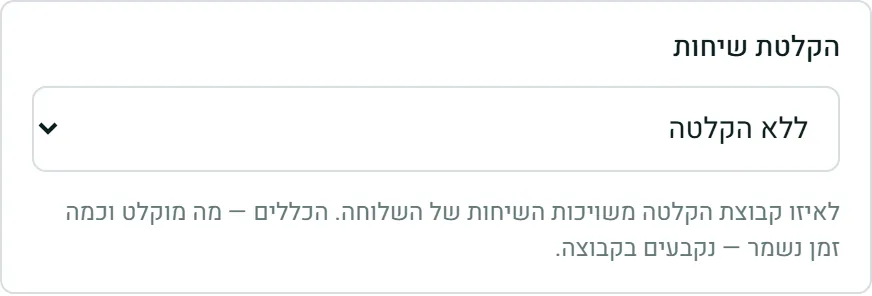
No recording, no transcription. When you open the settings of a line that isn't recorded, an explanation appears instead of the switch:

How to record a line:
- Create a recording group on the Recording Groups screen, if you don't have one yet. In the group you set whether to record incoming calls, outgoing calls or both, and how long recordings are kept. Full details are in the call recordings guide.
- Assign the line to the group. In the settings of the extension, number, queue or hunt group there is a "Call recording" field. Choose the recording group in it and save. In a queue and in a hunt group, the field is under "Advanced management". A routing code is assigned from the Recording Groups screen.
- Open the line's settings again. Now the "Automatic transcription to email" section is open.
Where to turn it on — all the automatic transcription points
There is no single setting for the whole account. You turn it on for each line separately, in its own settings, in the "Automatic transcription to email" section (in a voicemail box: "Voicemail transcription to email"). This way you choose exactly which calls are transcribed and who they are sent to.
- Recording group — all the calls recorded into the group, from all its lines. Sent to the group's email addresses (step 5).
- Extension — the calls of one extension. Has its own addresses.
- Number — calls that came in through a specific number. Has its own addresses.
- Queue — calls that went through the queue. Has its own addresses.
- Hunt group — calls that went through the hunt group. Has its own addresses.
- Routing code — calls that went through the code. Has its own addresses.
- Voicemail box — every new message left in the box. Sent to the box's addresses (step 6). No recording group is needed.
Turning it on in an extension, number, queue, hunt group or routing code
The example here is an extension; it works the same way for the other lines.
- Open the extension's settings and scroll to the "Automatic transcription to email" section.
- In the "Add address" field, type an email address and click Add. You can add several addresses; Remove next to an address removes it.
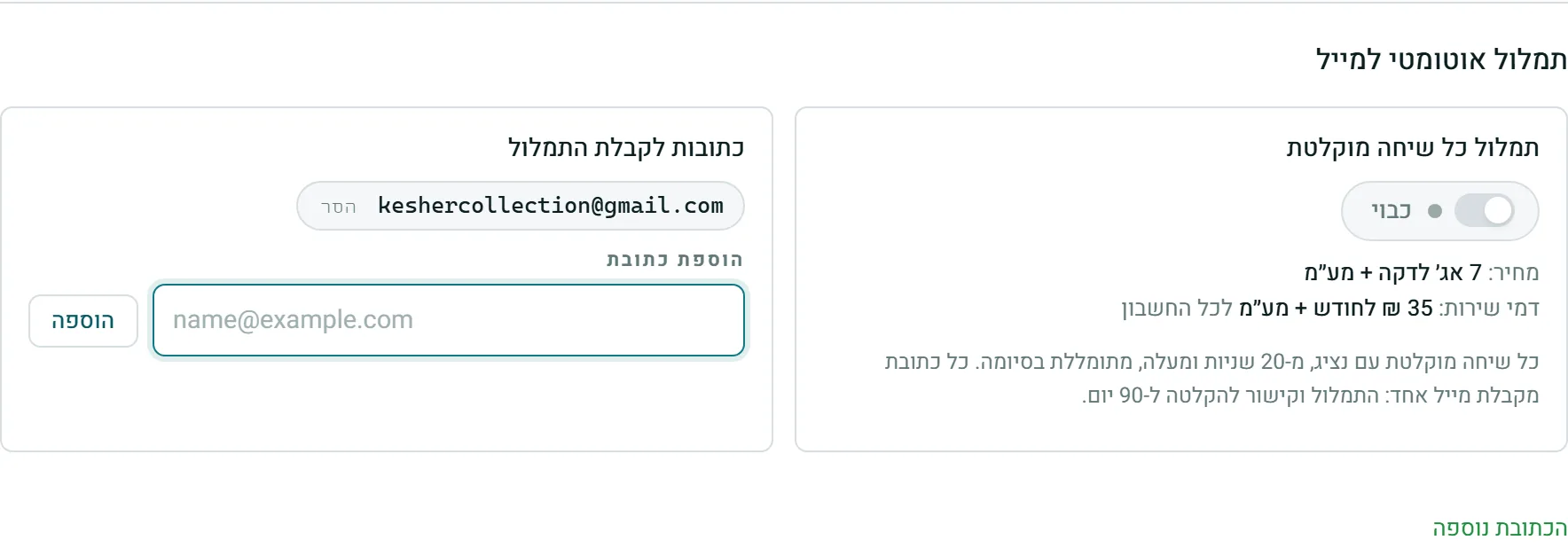
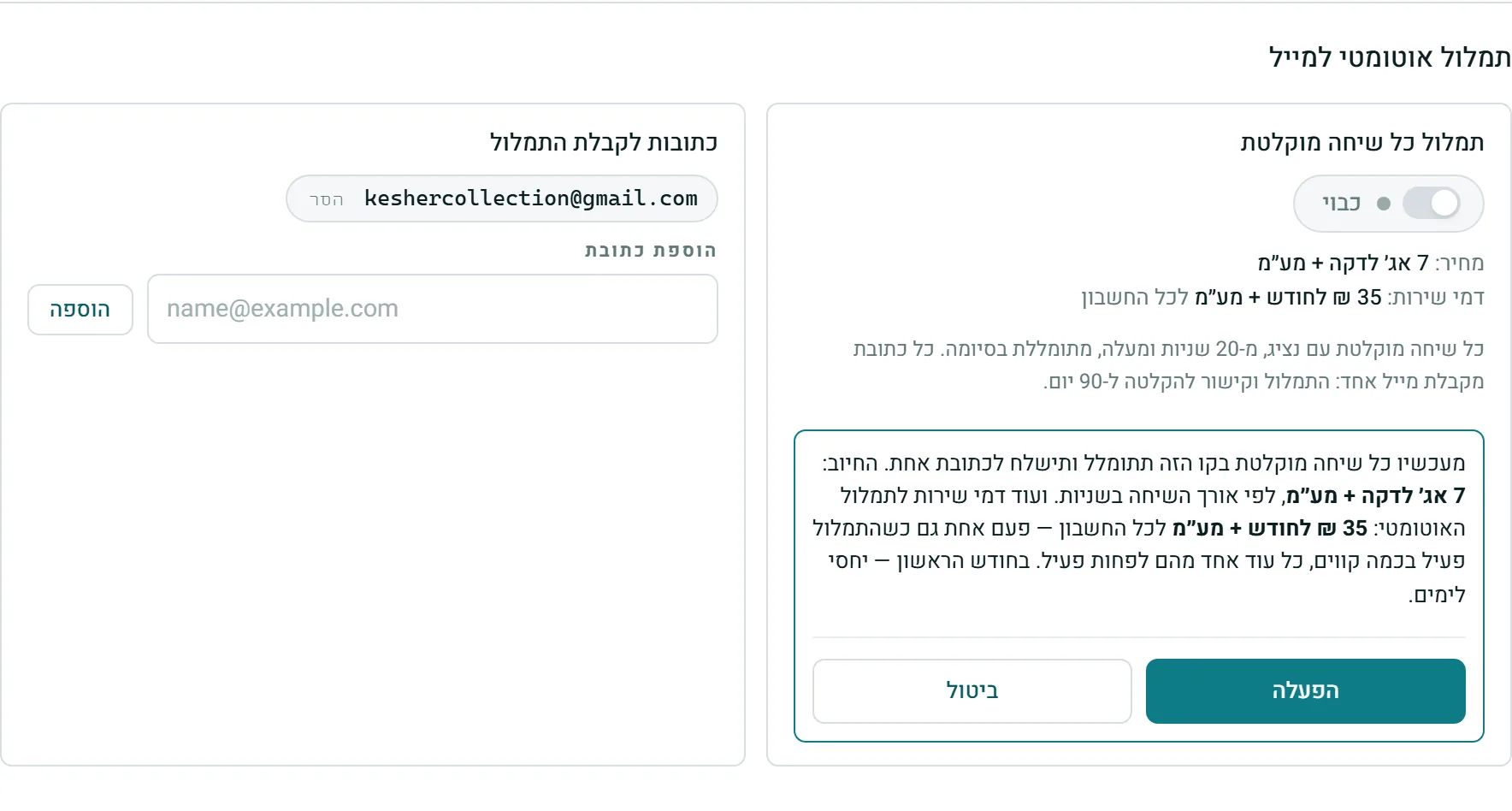
- Click the "Transcribe every recorded call" switch. A confirmation opens with the full price.
- Check the details and click Turn On.
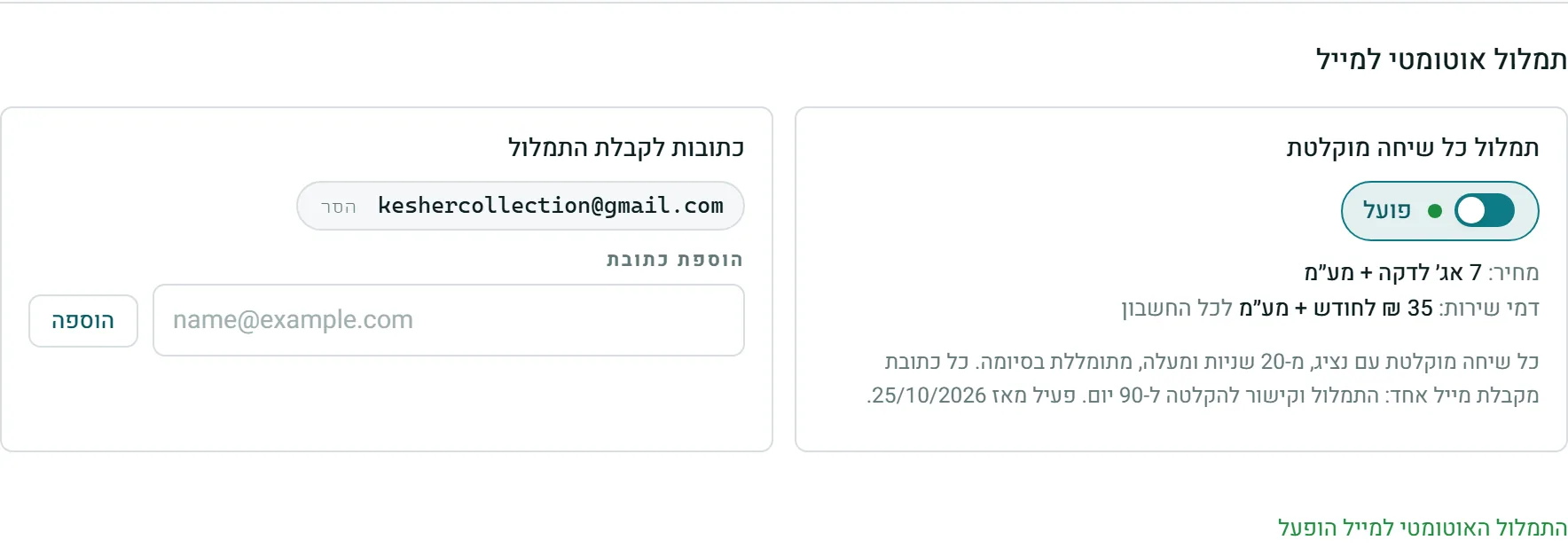
The switch changes to "On", and below it you see the date from which transcription is active.
Turning it on in a recording group
In a recording group, the transcript is sent to the group's email addresses, the same addresses that get the recordings from the PBX today. You don't add new addresses in the section; you edit them in the group's "Email addresses" field.
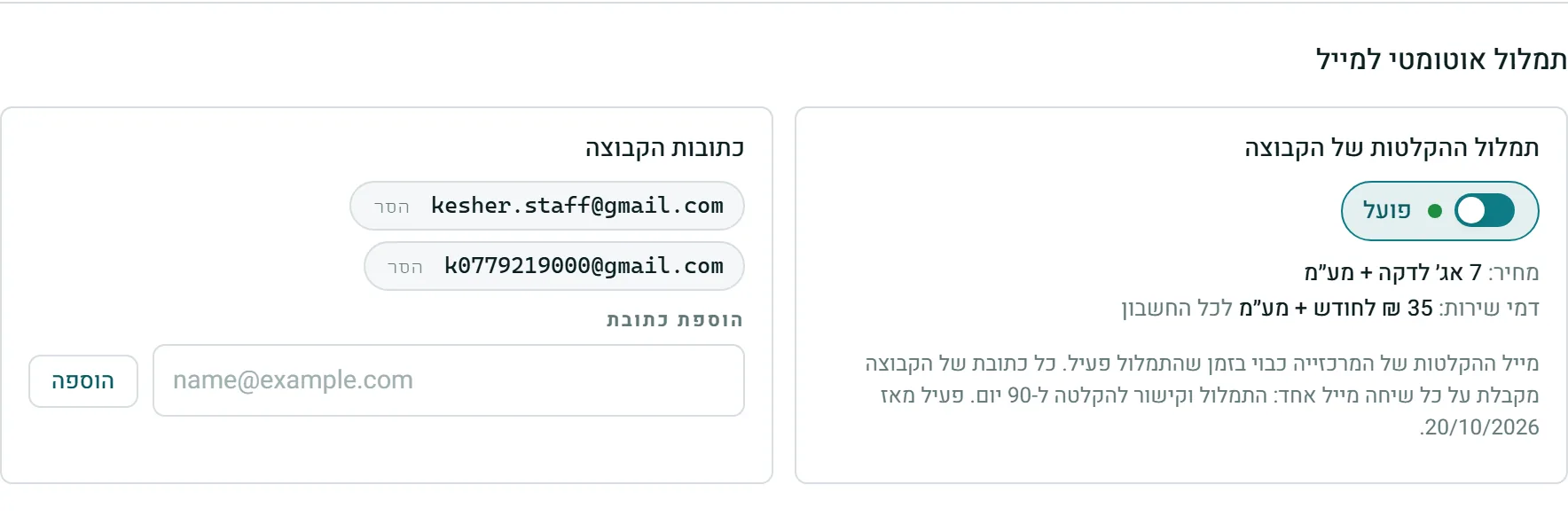
So that two emails don't arrive for every call: when you turn on transcription in a group, the PBX's email (the recording alone) is turned off. Instead, each address gets one email with the transcript and a link to the recording. When you turn off transcription, the PBX's recordings email goes back to the same addresses. While transcription is on, the group's "Email addresses" field is locked, with an explanation.
Voicemail box — transcribing messages to email
The voicemail box editor has a "Voicemail transcription to email" section, with the "Transcribe every new message" switch. Here you don't need a recording group, because the message that was left is the recording. The transcript is sent to the box's addresses, which are set in the "Email for messages" field at the top of the editor.
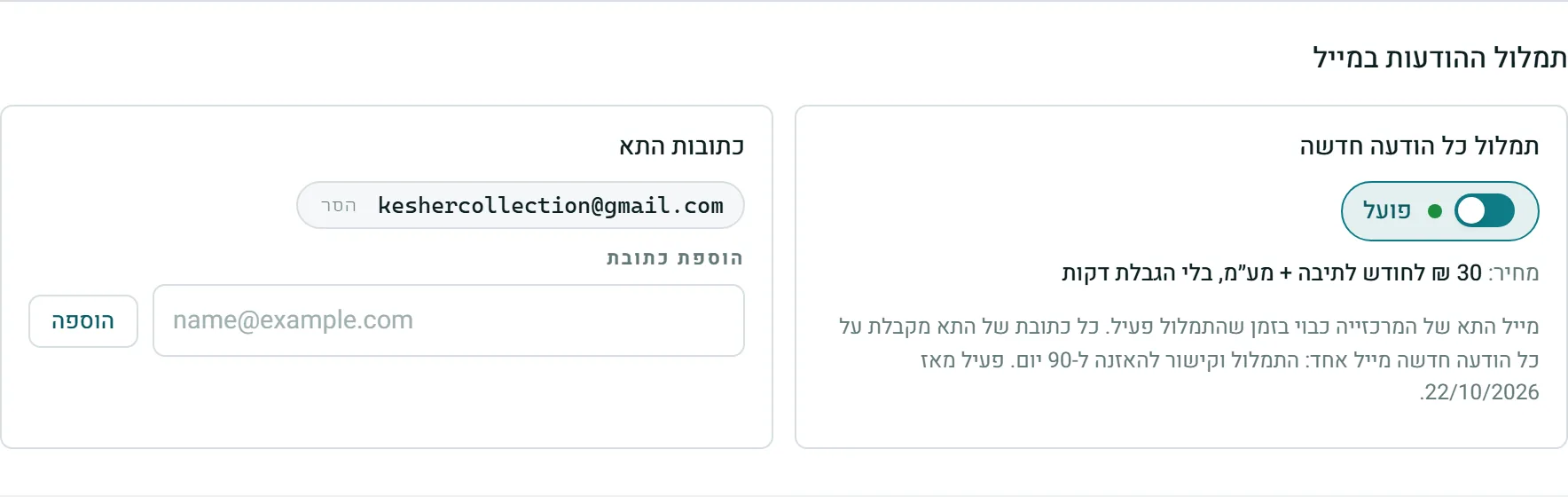
- Here too, there is one email per message: the box's PBX email is turned off while transcription is on, and comes back when you turn it off.
- The box has no address? Add an address in the "Email for messages" field, save, and then turn it on.
- A voicemail box has no minimum length — every message is transcribed.
What the email contains
A few minutes after the call (or the message) ends, one email arrives, with:
- The call details: direction (incoming / outgoing), the number, date and time, length, and how long someone spoke with an agent;
- The first lines of the transcript, and the full transcript in an attached file;
- The Listen to Recording button. The link works for 90 days.
How much it costs
The full price appears in the section below the switch, and again in the confirmation window, before anything is turned on. What is charged:
- Price per minute — by the length of the call in seconds, with no minimum charge. Minutes you have in a package are used first. In on-demand transcription — a call you pick and transcribe by hand — there is a minimum charge for every transcription you pay for: a call shorter than the minimum is billed as the minimum, and the minimum is shown in the transcription window before you confirm. From a package, only the actual length is used.
- Monthly service fee for automatic transcription — for each line that automatic transcription is on. For a customer who was given a flat amount, that amount is charged once for the whole account, for all lines together. In the first month the charge is prorated by days.
- Voicemail box — a fixed monthly price for each box that has transcription on, as shown in the box's section. In the first month, it is prorated by days.
The current amounts for your account always appear in the top row of the "Transcription" screen (step 9). All prices are before VAT.
The "Transcription" screen — everything in one place
In the side menu, in the "Call Management" group, click Transcription. At the top: the price per minute, the service fee, the price per voicemail box, the minutes left in your packages, and how many transcriptions there were this month. Below that: all the automations running in the account.
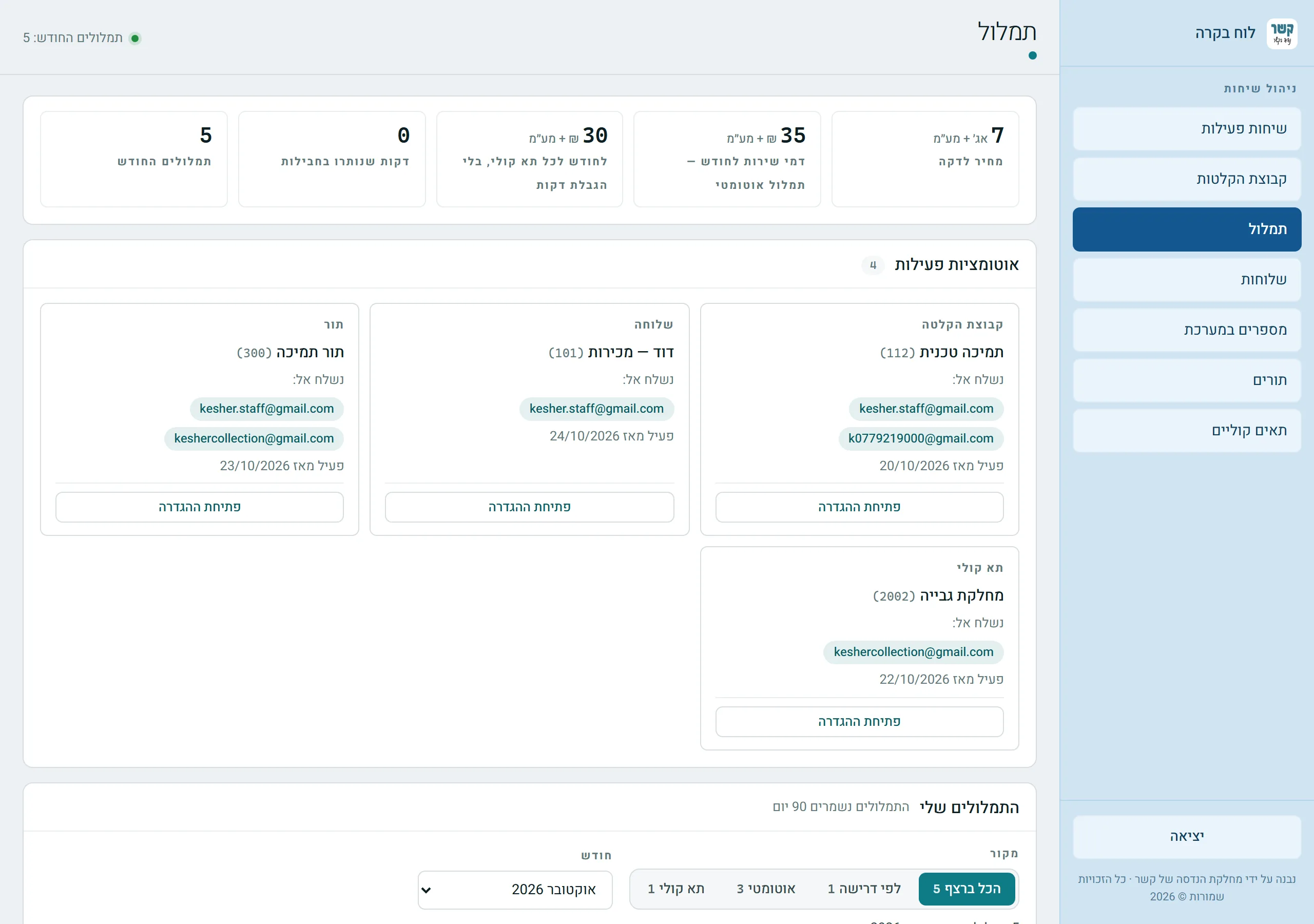
Each active automation has a card: which line, which addresses it is sent to, and from what date. The Open Settings button opens that line's settings directly.
My transcriptions
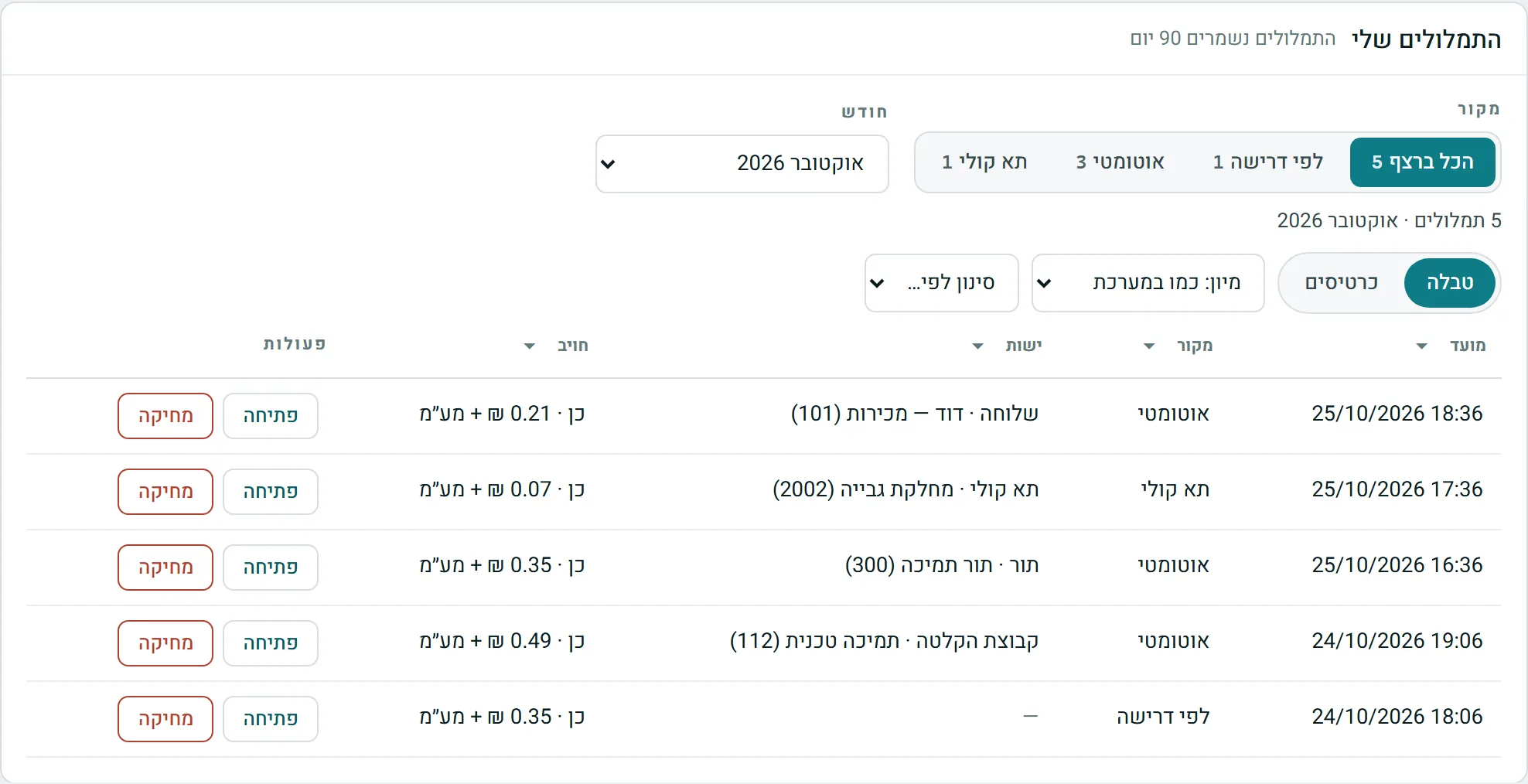
All the account's transcriptions from the last 90 days: automatic, voicemail and "On demand". Choose a source (All, On demand, Automatic, Voicemail) and a month. For Automatic and Voicemail, you can also choose a specific line. Open shows the transcript, and Delete deletes it (after confirmation).
Turn off
Open the line's settings, click the switch and confirm with Turn Off. New calls will not be transcribed. In a recording group and in a voicemail box, the PBX's email goes back to the addresses it had. Anything already sent stays available in the links and on the "Transcription" screen for up to 90 days.
The service fee for a line stops when you turn off automatic transcription on it. For a customer with a flat amount for the whole account, the amount stops when no line has automatic transcription turned on anymore.
I don't see it / emails don't arrive
- There is no "Automatic transcription to email" section at all — you don't have the "Transcription Management" permission. The system administrator can add it.
- It says "available only for a recorded line" — the line isn't assigned to a recording group. See step 2.
- Transcription is on but no email arrives — check that the call lasted at least 20 seconds with an agent, that there is an address in the section, and that the group records this direction (incoming / outgoing). Also check your spam folder.
- Two emails arrive for the same call — the address gets a recording from the PBX and also a transcript. Remove it from one of the places (step 5).
Stuck? Does something on the screen not behave like in the guide? Write to us through the Contact Us page. We'll be glad to help, and also to hear what's missing from the guide.