Voicemail Boxes — Messages, Greetings and Box Management
A voicemail box stores the messages left for the number or extension routed to it. On this screen you see how many new messages are waiting in each box, listen to them and delete them, manage the recorded greetings, create new boxes, and find "orphan" boxes that were left without an owner.
The screen at a glance
In the side menu, in the Audio and Voicemail group, click Voicemail Boxes. Each box is shown as a card with the box number, its description, and how many messages it holds.
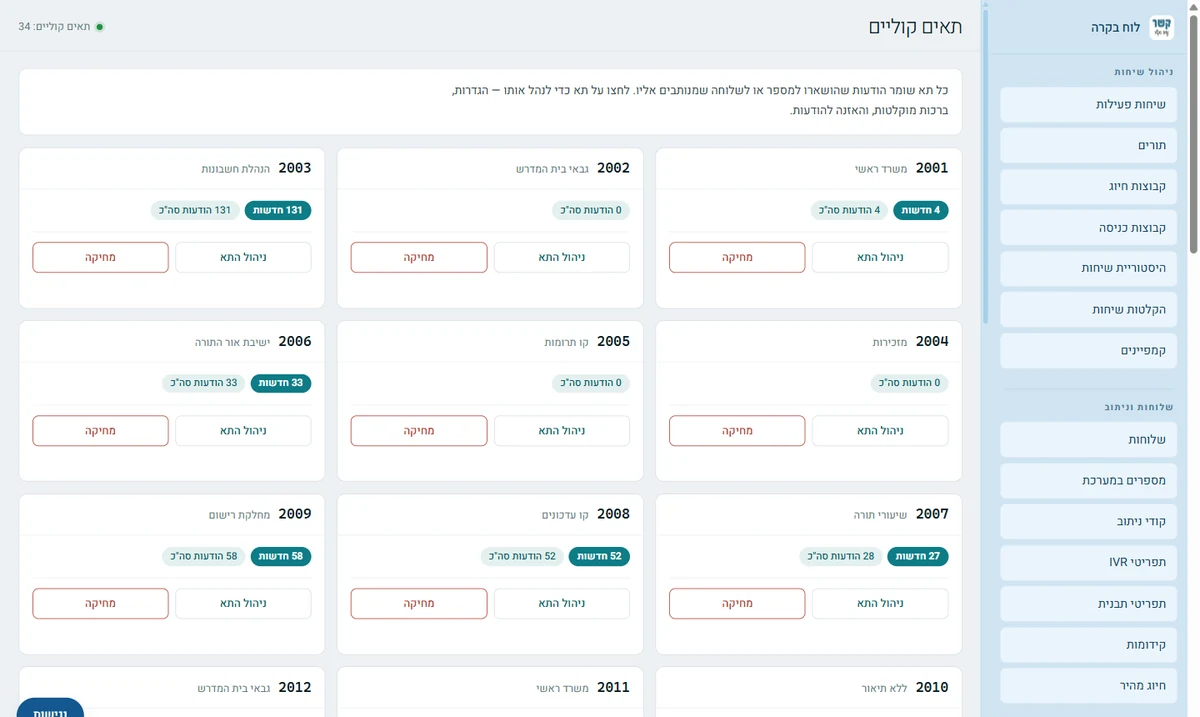
- New — how many messages are waiting in the box and have not been heard yet. The dark counter is the first thing to look for when you open the screen.
- Total Messages — everything stored in the box, including messages that have already been heard.
- Faxes — if the box also receives faxes, a separate counter appears. The fax files themselves are on the Faxes screen.
Clicking Manage Box opens everything described below: settings, greetings, and messages.
Box settings
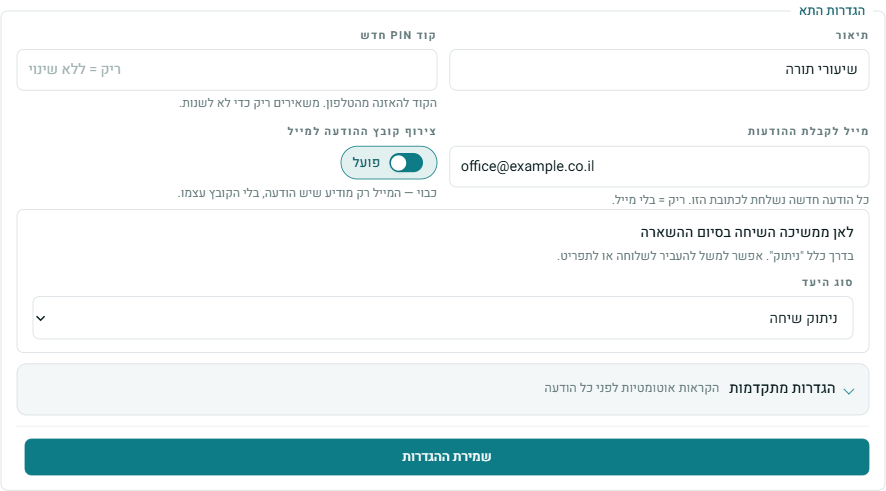
- Description — an internal name that helps you identify the box in the list.
- New PIN Code — the code you dial on the phone to listen to messages. Leave it empty to keep the existing code.
- Email for messages — every new message is sent to this address. With Attach the message file to the email on, the file itself is attached; when off, the email only notifies you that there is a message. When Voicemail transcription to email is on in the box, this field is off and locked — so that each address gets only one email, with the transcript and a link to listen. The addresses are then edited in the "Voicemail transcription to email" section at the bottom of the editor (see the transcription guide).
- Where the call goes after the message is left — usually "Hang up," but you can, for example, transfer to an extension or a menu.
Advanced Settings — Automatic Announcements
Before playing each message, the system can announce details about it: the caller's number, the message length, and the date and time. All three are simple switches under "Advanced Settings."
Recorded greetings
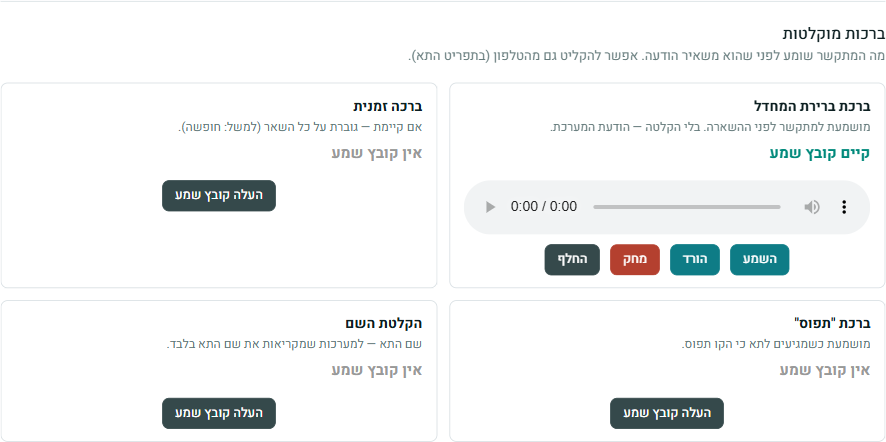
The greeting is what the caller hears before leaving a message. You can upload a file from your computer (the system automatically converts it to the PBX format), listen to it, download it, replace it, and delete it.
| Greeting | When it plays |
|---|---|
| Default greeting | Before a message is left, in most cases. With no recording, the system message plays. |
| Temporary greeting | If one exists, it overrides all the others. Handy for vacations: delete it and you are back to the regular greeting. |
| "Busy" greeting | When the call reached the box because the line was busy. |
| Name recording | A short recording of the box name, for systems that announce only the name. |
Messages in the box
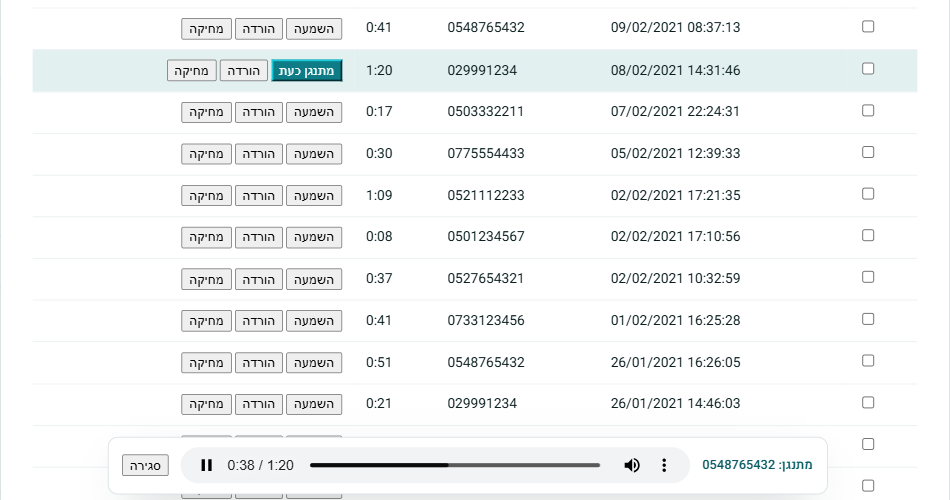
At the bottom of the management window is the messages table: when each message was left, from which number, and its length. There are two folders: New and Heard (messages that were listened to from the phone).
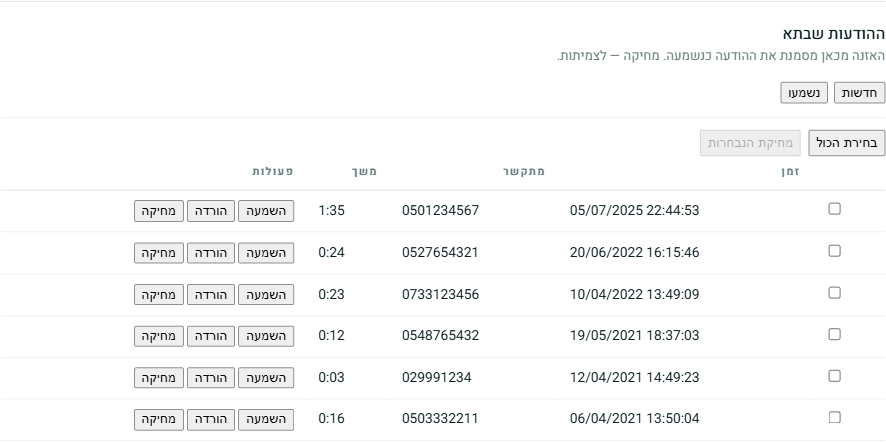
- Play — the message plays in a floating player at the bottom of the screen, so you can keep scrolling the list while you listen. The row that is playing is marked Now Playing.
- Download — saves the message file to your computer.
- Delete — a single message from its row, or several at once with the checkboxes and Delete Selected.
Creating a new box
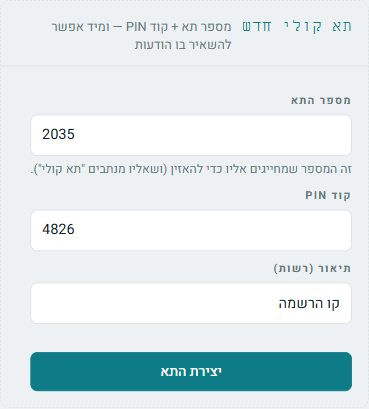
In the New Voicemail Box card you fill in three fields: Box Number (the number you dial to listen, and the one you route "voicemail" to), a PIN Code for listening from the phone, and a Description (optional). Right after it is created, messages can be left in the box.
For calls to reach the box, route them to it: on the Numbers screen or in the IVR menus, choose a destination of type Voicemail with the box number.
Deleting a box
The Delete button on the box card. To prevent mistakes, deleting requires typing the box number, because it also deletes all the messages in the box, permanently.
Orphan boxes
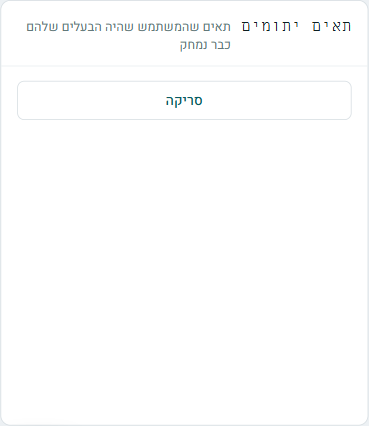
An "orphan" box is a box whose owner has already been deleted from the system. Such a box may hold old messages from someone who is no longer with you, and no one listens to them. Clicking Scan checks all the boxes and shows the orphans that were found.
Recommendation: delete an orphan box. If you need a box with the same number, create a new, clean one in its place.
Permissions
- Voicemail Boxes View — to see the screen and the greetings.
- Voicemail Boxes Create / Edit / Delete — to manage the boxes themselves.
- Listen to Messages — a separate permission: someone who manages box settings is not necessarily allowed to hear other people's messages.
- Delete Messages — separate from listening as well, because it cannot be undone.
Someone who was given only some of the permissions will see only the matching buttons.
Stuck? Does something on the screen not behave like in the guide? Write to us through the Contact Us page. We'll be glad to help, and also to hear what's missing from the guide.