Guide · Queues
Queues: waiting calls in order, and agents who answer
A queue is the PBX's waiting room: calls that enter it wait with music, and the system distributes them to agents in the order and by the method you set. This guide covers everything — what a queue is, how to create one, what each setting does, how to set who answers in it, how calls reach it, and how to see it live in the control panel.
What a queue is, and why it differs from any other destination
When you send a call to an IVR menu, the caller hears a menu and presses a key. When you send it to a hunt group, several phones ring together. And when you send it to a queue, the caller enters a waiting room: they hear music, keep their place in line, and the system rings the agents by the method you set until someone answers.
Important to understand: a queue is a final destination. It has no menu and no key presses. There are exactly two ways out of a queue:
- An agent answered — the call is connected, and that is the happy ending.
- The call was not answered — the caller waited longer than the maximum wait time, the queue was full when they arrived, or no agent is available (if you chose to exit immediately in that case). The call then continues to the queue's exit destination: a voicemail box, an IVR, an external number, or any other destination.
A queue also has an option that a hunt group doesn't: callback — a waiting caller can press * and ask to be called back instead of continuing to wait (step 6). The details are in the callback guide.
The Queues screen
In the control panel, in the side menu, click Queues (in the "Call Management" group). If you don't see the item, you don't have permission to view queues.
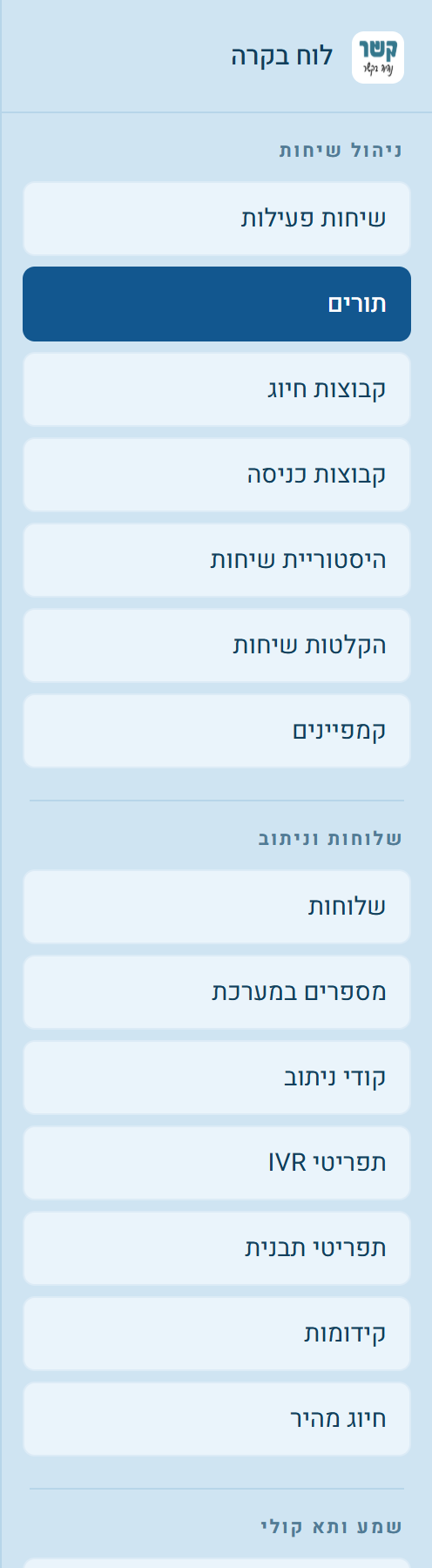
Each queue is shown as a card that answers three questions: which queue it is, how it distributes calls, and where an unanswered call continues. At the end is the "Create New Queue" card. Above the cards there is a toolbar: Search the list, switching between Cards and Table, Sort, and Filter by column.
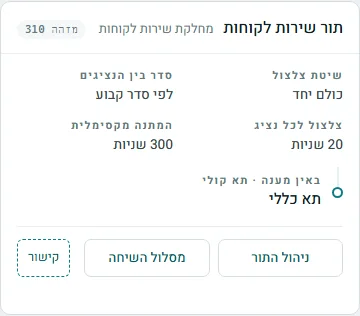
- Ring method — who to ring when a call arrives: everyone together, or the one who spoke least recently.
- Agent order — fixed order, round robin, or a "smart" version of either.
- Ring time per agent — how many seconds to ring an agent before moving to the next one.
- Maximum wait — how long a call waits in the queue before it continues to the exit destination. "No limit" = wait until answered.
- If unanswered — the exit destination and the destination type, at the bottom of the card.
At the bottom of the card: Manage Queue (for users with edit permission), Call Route and Link, which copies a direct link to the queue.
Create New Queue
Click Create Queue on the "Create New Queue" card. A "New queue" window opens with the basic settings:
- Queue name — required, and worth getting right: this is the name shown in the control panel next to every waiting call, and the name you will look for in any future action that sends calls to this queue. For example, "Customer Service".
- Description — an internal note for the team. Optional.
- The other settings, including Advanced Management, can be filled in now or later. Anything you don't fill in stays at the PBX's default.
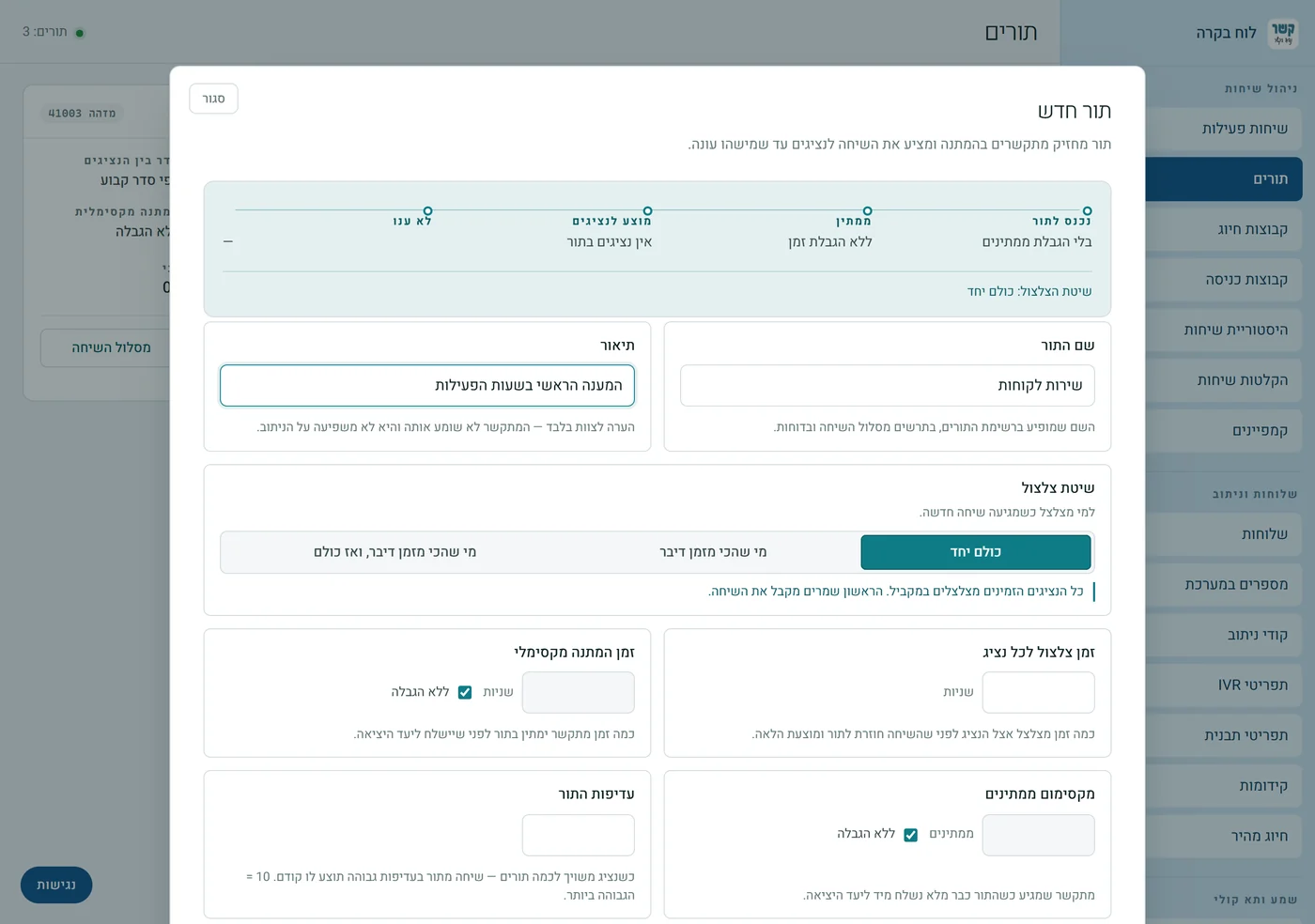
When done, click Create Queue at the bottom. The queue appears in the list, and the system assigns it an ID — an internal number used when you send calls to it. Agents are added after the queue is created, in "Manage Queue".
Editing an existing queue
Click Manage Queue on the card. At the top of the editor are two locked fields — Queue ID and Customer number — and below them a strip that describes what the caller goes through: Enters queue (up to how many are waiting), Waiting (for up to how long), Offered to agents (how many agents, and how many of them are receiving calls right now) and Unanswered (the exit destination). The strip updates as you change settings.
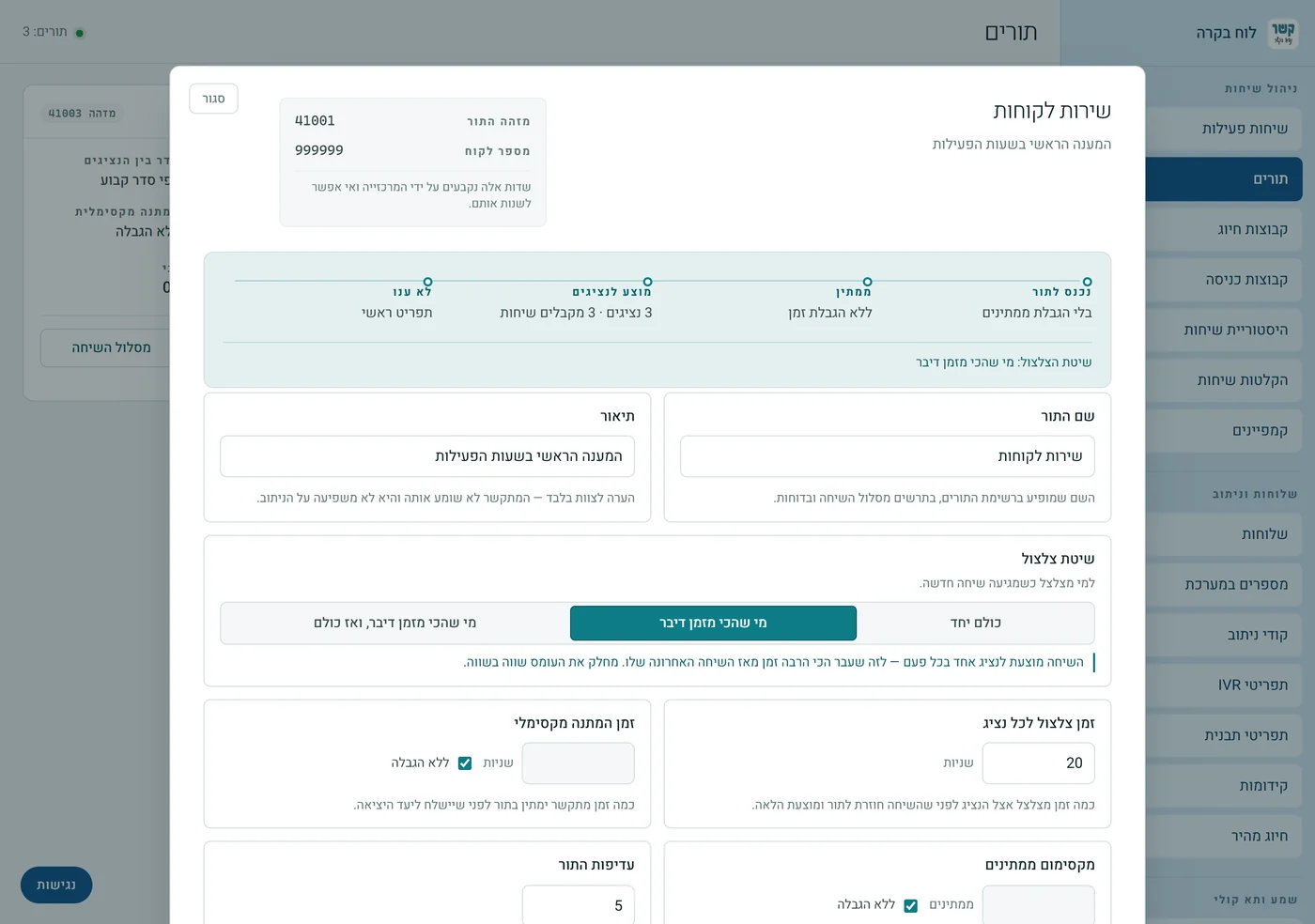
| Setting | What it does |
|---|---|
| Queue name | The name shown in the queue list, in the call route chart and in reports. |
| Description | A note for staff only — the caller does not hear it. |
| Ringing method | All together — all available agents ring at the same time. Longest idle — the call is offered to one agent at a time, the one with the most time since their last call. Longest idle, then everyone — starts with that agent, and if they don't answer, everyone rings. |
| Ring time per agent | How many seconds it rings for the agent before the call goes back to the queue and is offered to the next agent. |
| Maximum wait time | How many seconds a caller waits in the queue before being sent to the exit destination. With "Unlimited" checked, callers wait until someone answers. |
| Maximum waiting callers | A caller who arrives when the queue is already full is sent straight to the exit destination. "Unlimited" means there is no cap. |
| Queue priority | 1 to 10. When an agent belongs to several queues, a call from a higher-priority queue is offered to them first. 10 = the highest. |
Below the basics is a collapsed "Advanced Management" section, with four groups: Leaving the queue, Distributing calls to agents, The caller's wait, and Recording and control. Each setting has a short explanation below it.
Leaving the queue — where an unanswered call continues
In the "Leaving the queue" group, choose a destination type (voicemail box, IVR, external number, and more) and the destination itself. This is where a call goes if it waited too long, found the queue full, or was not answered by any agent. Next to a selected destination, Edit Destination appears; it opens the destination's settings in a window over the editor.
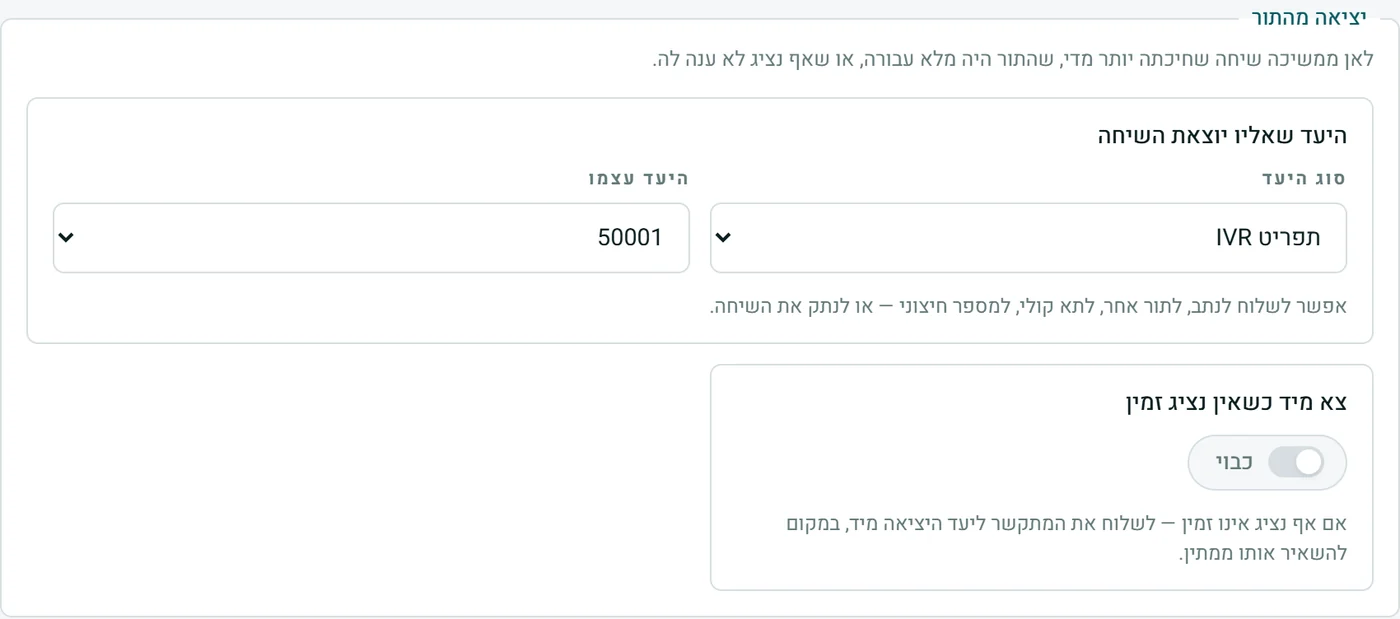
The same group has "Exit immediately when no agent is available": when it is on and no agent is available, the caller is sent to the exit destination right away, instead of waiting for nothing.
Call distribution, waiting, recording and control
Distributing calls to agents
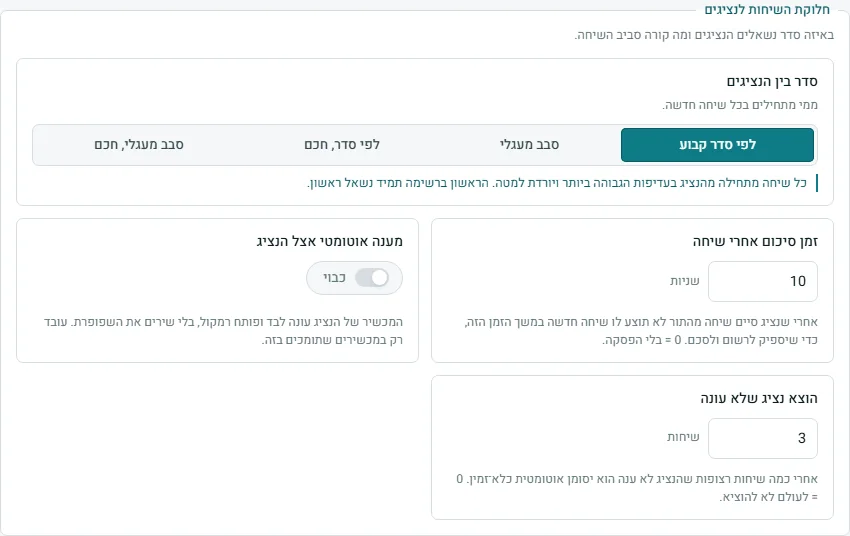
| Setting | What it does |
|---|---|
| Agent order | Fixed order — always starts from the agent with the highest priority. Round robin — continues from the agent after the one who got the previous call. Fixed order, smart and Round robin, smart — the same, but they skip agents who are currently on a call instead of waiting for them. |
| Wrap-up time after a call | After an agent finishes a call from the queue, no new call is offered to them for this time, so they can write notes and wrap up. 0 = no break. |
| Auto-answer at the agent | The agent's phone answers by itself and turns on the speaker. Works only on phones that support it. |
| Remove unresponsive agent | After this many calls in a row that the agent doesn't answer, the agent is automatically marked unavailable. 0 = never remove. |
The caller's wait
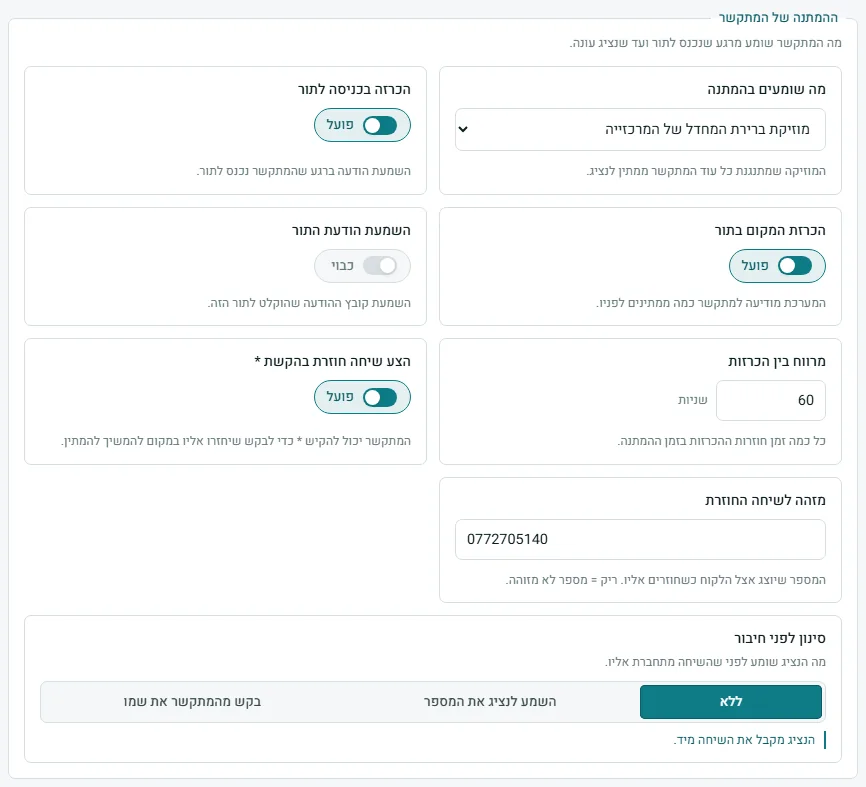
| Setting | What it does |
|---|---|
| What callers hear while waiting | The music that plays while the caller waits for an agent. |
| Announcement on entering the queue | Plays a message as soon as the caller enters the queue. |
| Announce queue position | The system tells the caller how many are waiting ahead of them. |
| Play queue message | Plays the message file recorded for this queue. |
| Interval between announcements | How many seconds between repeats of the announcements while the caller waits. |
| Offer callback by pressing * | The caller can press * to request a call back instead of continuing to wait. |
| Caller ID for the callback | The number shown to the customer when they are called back. Empty = unidentified number. |
| Screening before connecting | What the agent hears before the call is connected to them: None, Play the number to the agent, or Ask the caller for their name. |
Recording and control
| Setting | What it does |
|---|---|
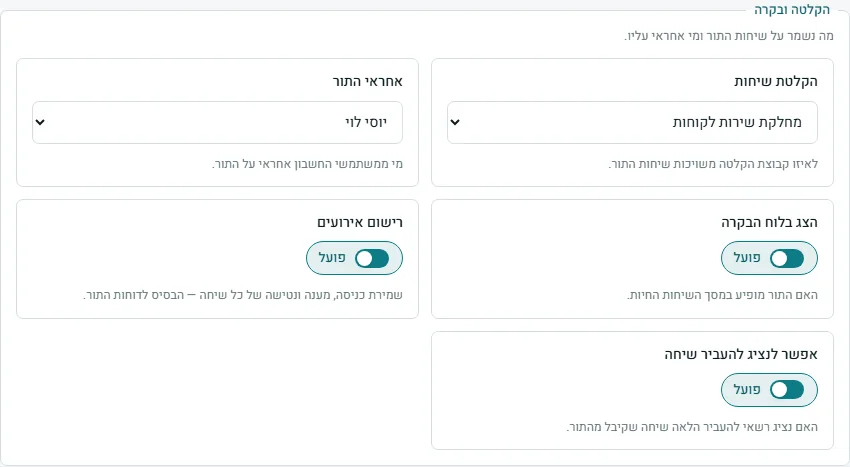
| Call recording | Which recording group the queue's calls belong to, or "Not recorded". See the recordings guide. |
| Queue owner | Which of the account's users is responsible for the queue. |
| Show in the control panel | Whether the queue appears in the active calls screen. |
| Event logging | Saves the entry, answer and abandonment of every call. This is the basis for queue reports. |
| Allow agent to transfer a call | Whether an agent may transfer onward a call received from the queue. |
Queue agents — who answers the calls
Further down the editor is the "Queue agents" area. An agent can be:
| Type | What it is |
|---|---|
| External Number | A mobile or regular line — an agent who answers from their own phone. The call goes out from the PBX to the number. |
| Extension | A line on the account, including its settings (Do not disturb, forwarding). |
| Phone Line | Rings the device registered to the line directly, without going through the extension's settings. |
| SIP address | A direct connection to an external SIP address — for advanced users. |
Add an agent in the add row at the top of the area: choose the Agent type (an explanation appears below it), fill in the number or choose a line from the list, set a Priority, and click Add Agent.
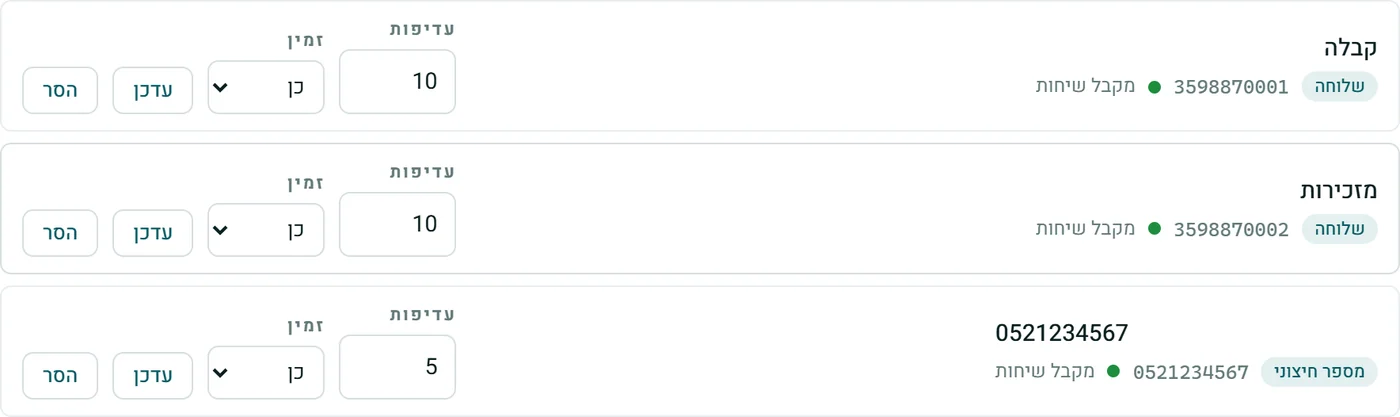
Next to each agent, their current status is shown:
- Receiving calls — available, and the queue will offer them calls.
- On a call now — talking right now.
- Paused or Unavailable — the queue will not offer them calls until they are back.
For each agent you can change Priority and Available (Yes / No) and save with Update, or remove the agent with Remove (after a confirmation question). Adding, updating and removing are saved immediately — without "Save Changes".
How calls get to a queue
A queue has no phone number of its own — calls reach it when something else in the PBX sends them there. The common ways:
- Number — a number's default destination, or one of its time or caller routes ("During business hours — to the queue").
- Routing code — a code that sends calls to the queue. Useful as an intermediate stop that is easy to change.
- IVR menu — "For customer service, press 1", and pressing 1 sends the call to the queue.
See who already sends to the queue
Further down the editor is "What Reaches This Queue" — the system scans all the routing and shows every number, code, IVR or group that points to the queue, with the exact path ("Caller route 03", "Key 1"). Clicking Call Route on a row draws the full path.

Saving and deleting
At the bottom of the editor: Save Changes, Call Route and Delete Queue.
- Only what you actually changed is sent to the PBX, and a confirmation message appears. If you close the window with an unsaved change, a warning appears before the window closes.
- A queue must have a name — without one, saving stops.
- Delete Queue asks before deleting. If there are routes that point to the queue, the message says how many — deleting will break them. It's best to check "What Reaches This Queue" first and point them somewhere else.
- Creating, editing and deleting are separate permissions. A button you don't have permission for does not appear.
A call waiting in a queue — in the control panel
In the Active Calls screen, each call is shown on a small card: the call type, how long it has lasted, and who is calling whom. For a call waiting in a queue, the destination on the card is the queue's name. Clicking the card opens Call details, where the route is written as a sentence: "dialed Main line, forwarded to menu "Main menu", now in queue "Customer Service"". The moment an agent answers, the end changes to "now talking with" and the agent's name.
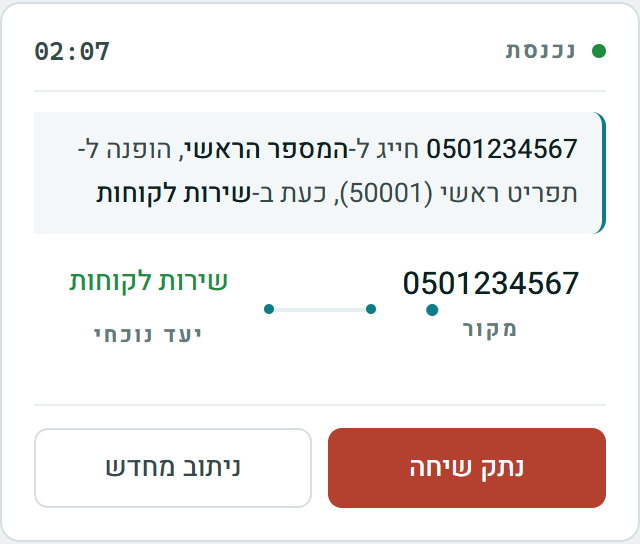
Here too you have the two buttons: Hang Up and Reroute — you can pull a call out of the queue and send it to any other destination, without the caller hanging up. How to do it is in the Control Panel guide.
Stuck? Does something on the screen not behave like in the guide? Write to us through the Contact Us page. We'll be glad to help, and also to hear what's missing from the guide.