Callback — when agents answer on a mobile
A caller waiting in a queue can press star, hang up and keep their place — and the system will call them back when their turn comes. This guide explains how to turn this on, and what matters most when agents answer from a mobile phone rather than a line of the phone system.
Two ways to call the caller back
| Method | What happens | When it fits |
|---|---|---|
| Callback from the queue | The caller presses * while waiting and hangs up. When their turn comes, the system calls them back and connects them to an agent — in order. | Busy hours, a queue with a wait of a few minutes |
| Calling back manually | The agent sees in the call log who waited or wasn't answered, and dials from the control panel. | When you want to choose whom to call back and when |
Both ways also work when the agent answers on a mobile, and in both the customer sees a business number on the display — not the agent's private mobile.
For a general explanation of callback and when it's worthwhile — see What is a queue callback in the Knowledge Center.
Turning on callback in a queue
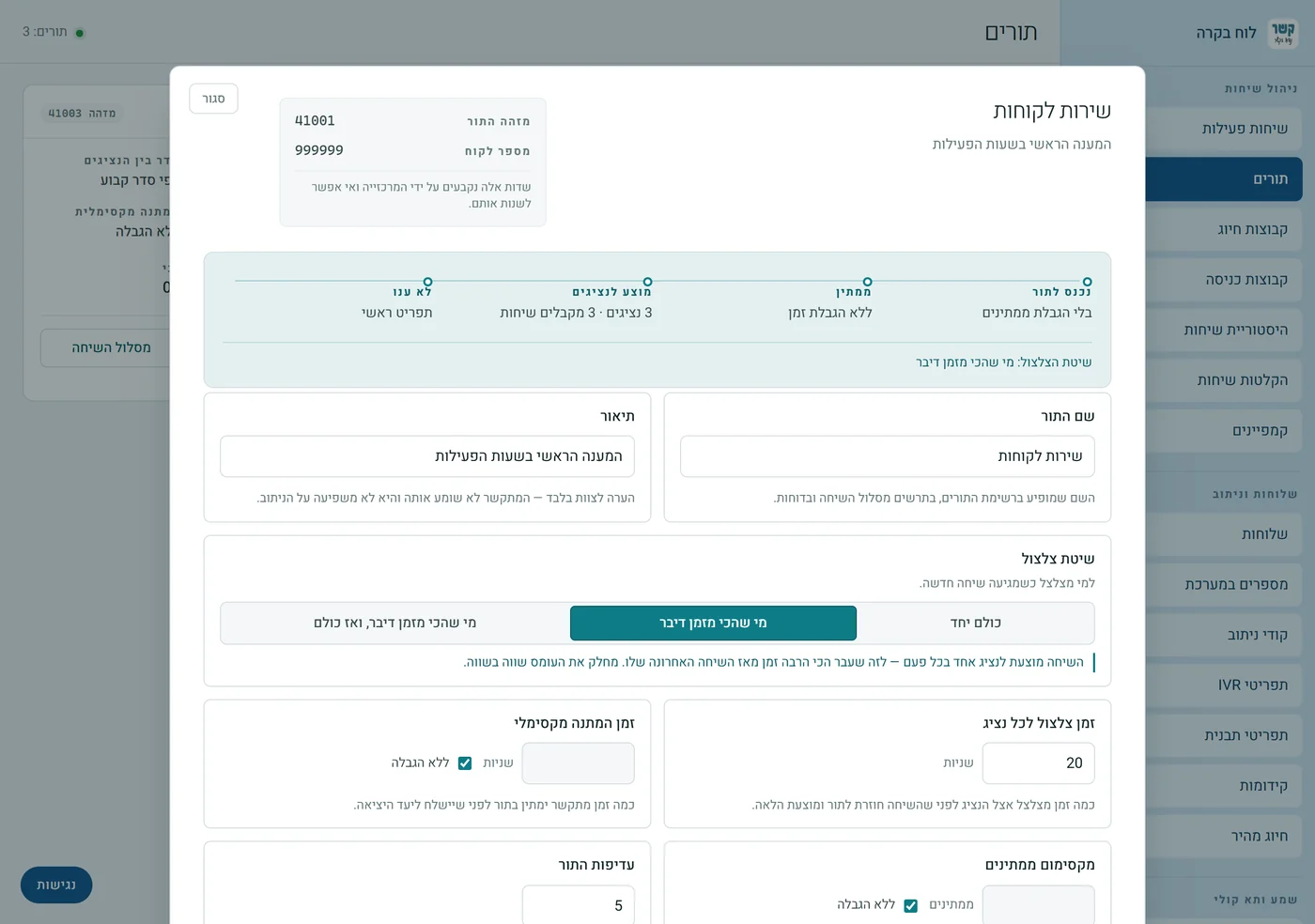
- In the side menu: Queues, and on the queue's card — Manage Queue.
- Open "Advanced management", and in the group "The caller's wait":
- Offer callback by pressing * — turn it on.
- Caller ID for the callback — a business number (a number in the account). This is the number the customer will see when you call them back.
- Click Save Changes.
Agents who answer on a mobile
In the "Queue agents" area, add an agent of type External Number and type the mobile number. This is a regular agent type in the queue — it receives both regular calls and the callbacks.
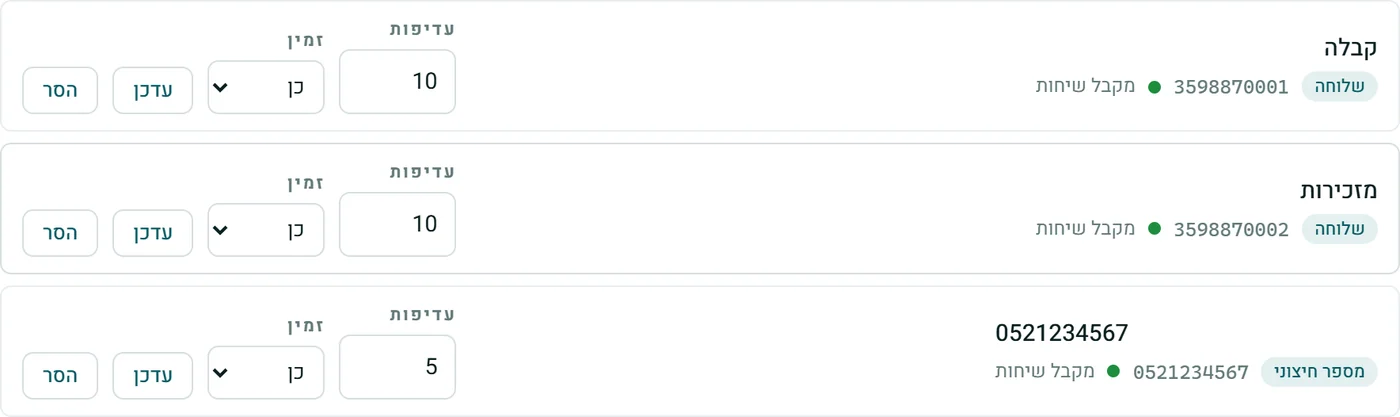
When agents are on a mobile, pay attention to these queue settings:
| Setting | What to set | Why |
|---|---|---|
| Ring time per agent | 15–18 seconds | A mobile's voicemail usually answers after about 20 seconds. Ringing longer may let the voicemail "answer" — and the customer will reach the agent's voicemail. |
| Screening before connecting | Play the number to the agent | The agent hears who is calling before being connected — an extra layer of protection against voicemail. Check with a test call. |
| Auto-answer at the agent | Off | It has no meaning on a mobile, and it may connect without anyone really answering. |
| Remove unresponsive agent | 2–3 calls | A mobile that is off or without reception won't hold up the queue. |
| Wrap-up time after a call | 10–20 seconds | A short gap between calls, so as not to ring an agent who has just finished. |
How the phone system knows an agent on a mobile is free
- What it sees: only calls that pass through it. An agent on a mobile counts as free when the phone system hasn't connected a call to them right now, and they aren't in "Wrap-up time after a call".
- What it doesn't see: a private call on the mobile, a phone that is off or without reception. In these cases it simply rings — and when there's no answer within "Ring time per agent", it moves on to the next agent.
Calling back manually from the control panel
In the side menu: Actions → Make a Call.
- In "Where to call you first" choose Another number and type the agent's mobile.
- In "Destination number" — the customer's number.
- In "Caller ID shown to the destination" — a business number.
The phone system first rings the agent's mobile. When they answer — it dials the customer and connects the two. The customer sees the business number.
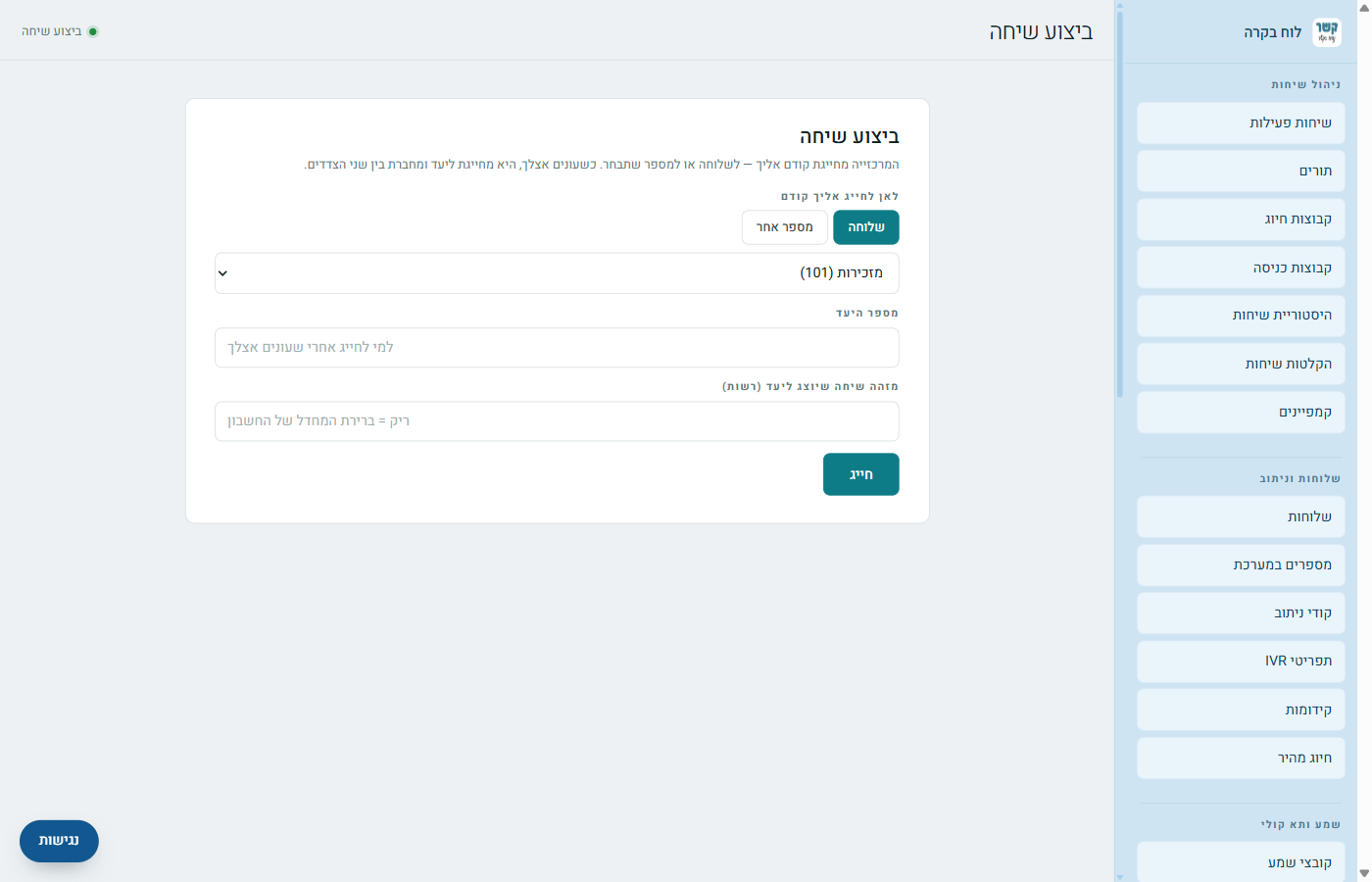
A full explanation of the screen — in the Actions guide.
A test call before turning it on for customers
- A test queue, with your mobile in it as an agent (External Number). "Offer callback by pressing *" — on.
- From a second phone, call the queue, press * and hang up.
- Check: that the caller heard a confirmation that the request was received; what appears on the display for the customer and for the agent; and that the mobile's voicemail doesn't "answer" instead of the agent.
Good to know
- Cost: when the agent is on a mobile, every callback is two outgoing calls — to the customer and to the agent's mobile — and both count as minutes.
- Channels: such a call takes up two channels at once. In an account with few channels, at busy times this may take up room needed for incoming calls. See Channels in the Knowledge Center.
- Withheld number: there's nowhere to call back a caller with a withheld number.
- The place in the queue: whoever presses star keeps their place. Whoever stays on the line — keeps waiting as usual.
Stuck? Does something on the screen not behave like in the guide? Write to us through the Contact Us page. We'll be glad to help, and also to hear what's missing from the guide.