Report a Problem — sending a report, screenshots and following up on replies
Ran into something that does not work, or have a question or an idea? On every page of the site and in the control panel there is a button for sending a report straight to the team, with a screenshot and details. The reply comes back to the same place.
Where the button is
In the control panel, in the corner of the screen next to the Accessibility button, there is a Report a Problem button. On the site pages it sits in the bottom corner opposite the Accessibility button, so that it does not cover text. You can use it even without signing in.

When the team replies to a report you sent, a small dot appears on the button.
When something does not respond to a click
If you click the same spot several times in a row, a small message appears: Something not working?
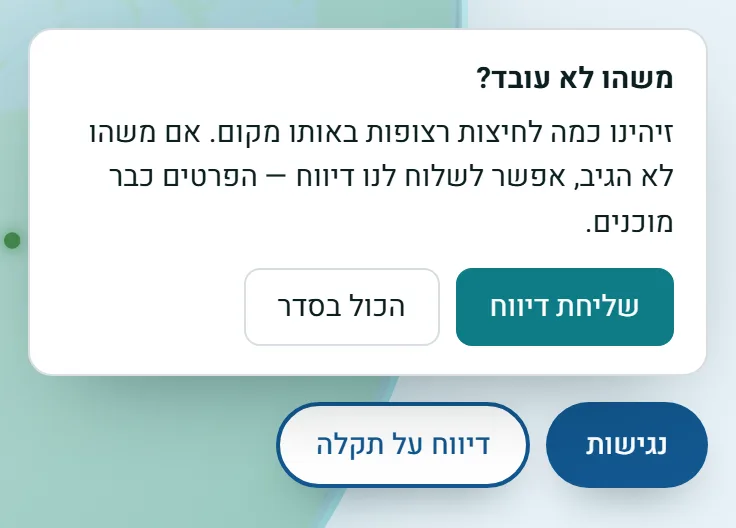
- Send Report — opens the report form, with a title and description already filled in based on what you clicked. You can change them.
- All Good — closes the message. It will not appear again for the next few minutes.
Filling in the report
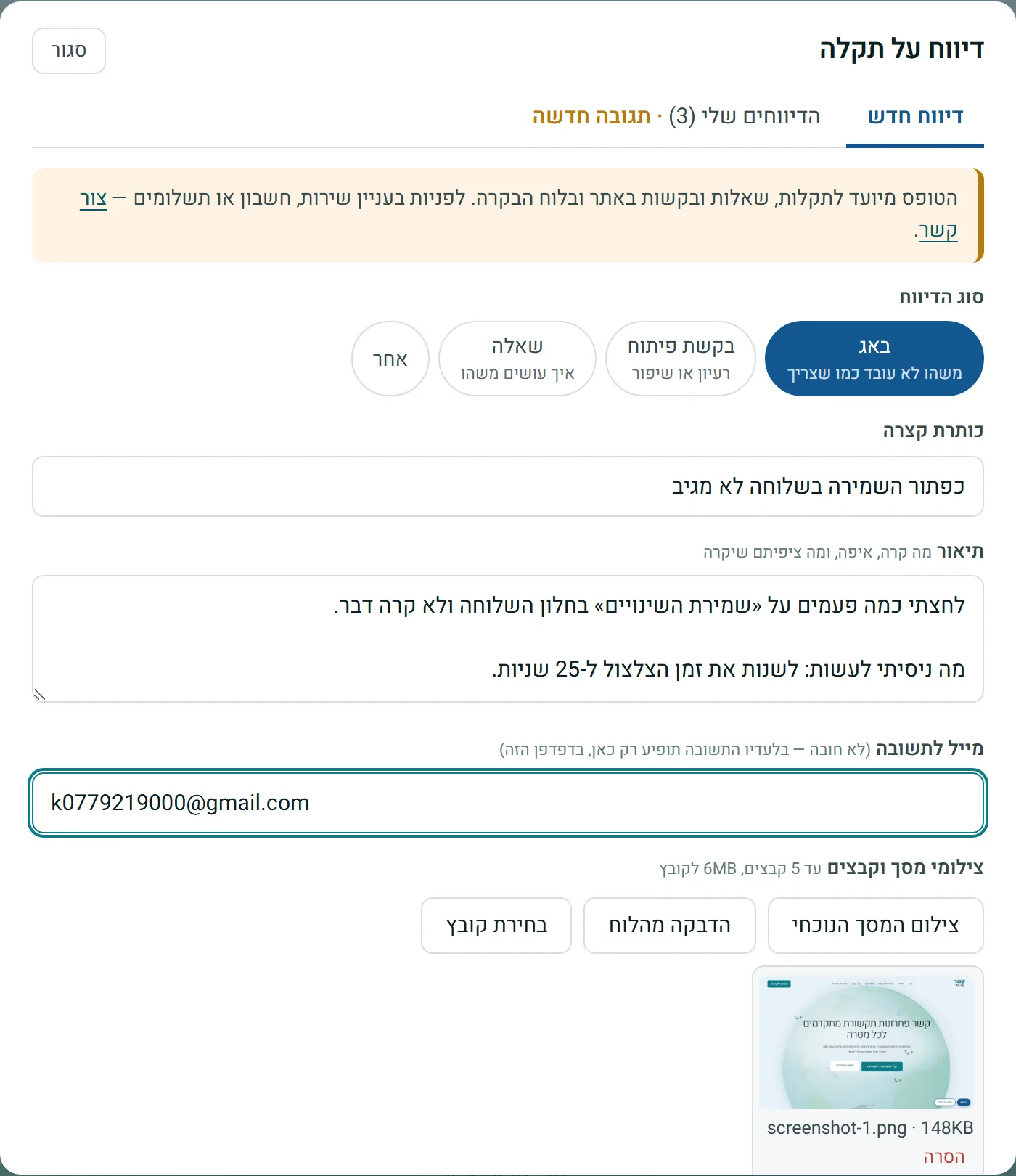
Click the button, and in the New Report tab fill in:
- Report type — Bug (something does not work), Feature Request (an idea or improvement), Question, or Other.
- Short title — one sentence that explains the problem.
- Description — what happened, on which screen, and what you expected to happen.
- Email for the reply — shown only to those who are not signed in. Optional. If you leave an email, the team's reply will be sent there as well.
Screenshots and files
You can attach up to 5 files, up to 6MB each, in three ways:
- Capture Current Screen — takes a picture of the page you are on.
- Paste from Clipboard — pastes an image you copied. You can also press Ctrl+V while the window is open.
- Choose File — a file from your computer or phone.
To remove a file attached by mistake, click Remove below it.
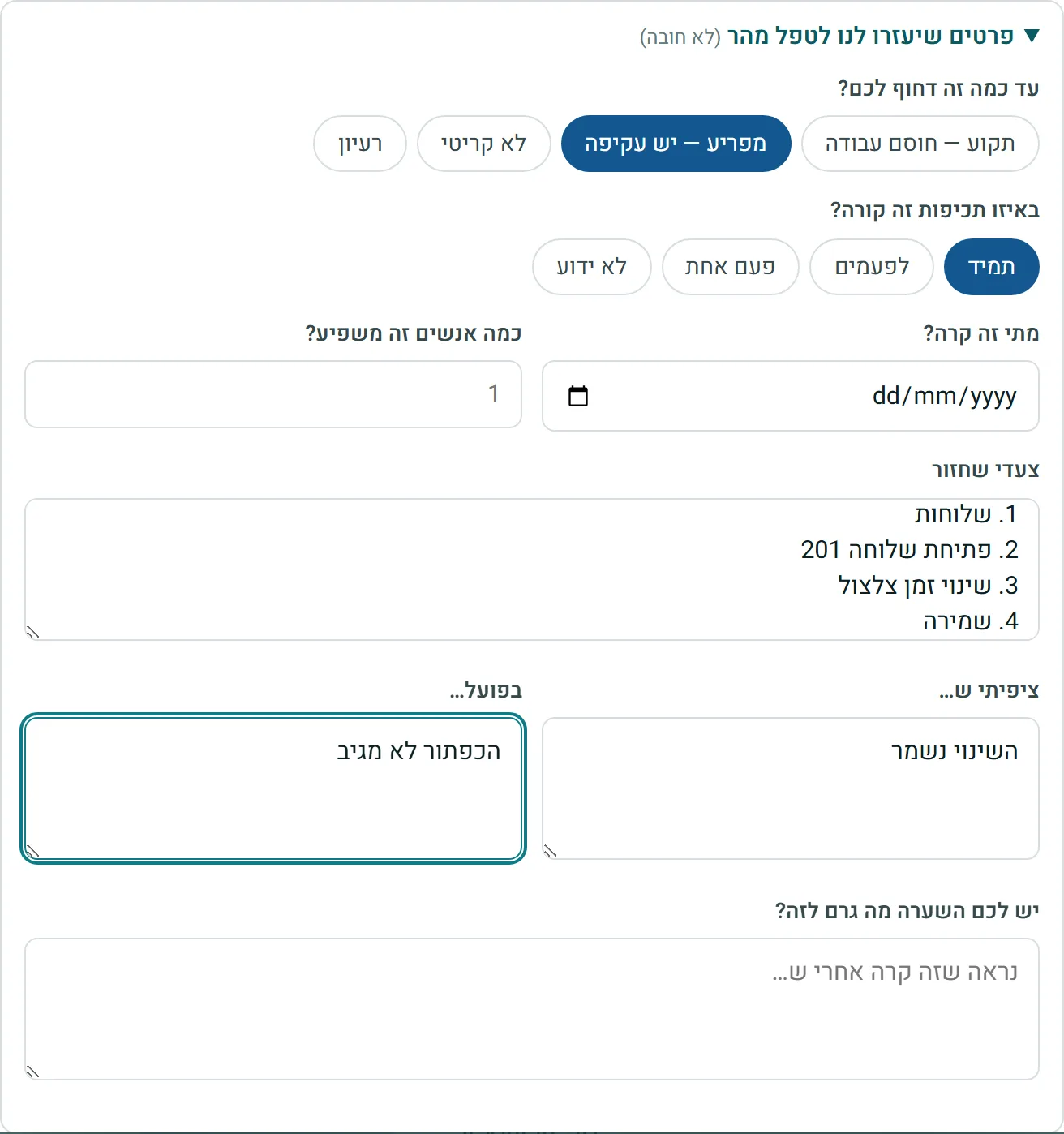
More details (optional)
Below the form there are two collapsed sections. Click the heading to open them.
Details that help us handle it faster
Urgency, frequency, when it happened, how many people it affects, steps to reproduce, what you expected and what actually happened.
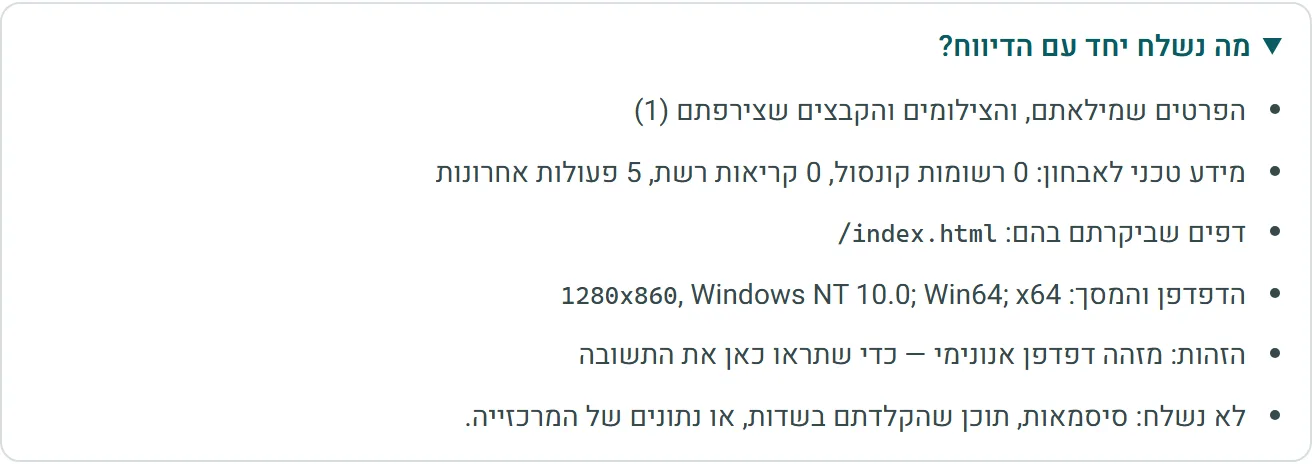
What is sent with the report?
Here you can see exactly what technical information is attached: errors on the page, the latest actions, the pages you visited, and the browser and screen size.
At the end, click Send Report and you get a report number.
My Reports and the team's replies
The My Reports tab shows all the reports you sent, with the status of each one. When there is a reply you have not read yet, New reply appears next to the report.
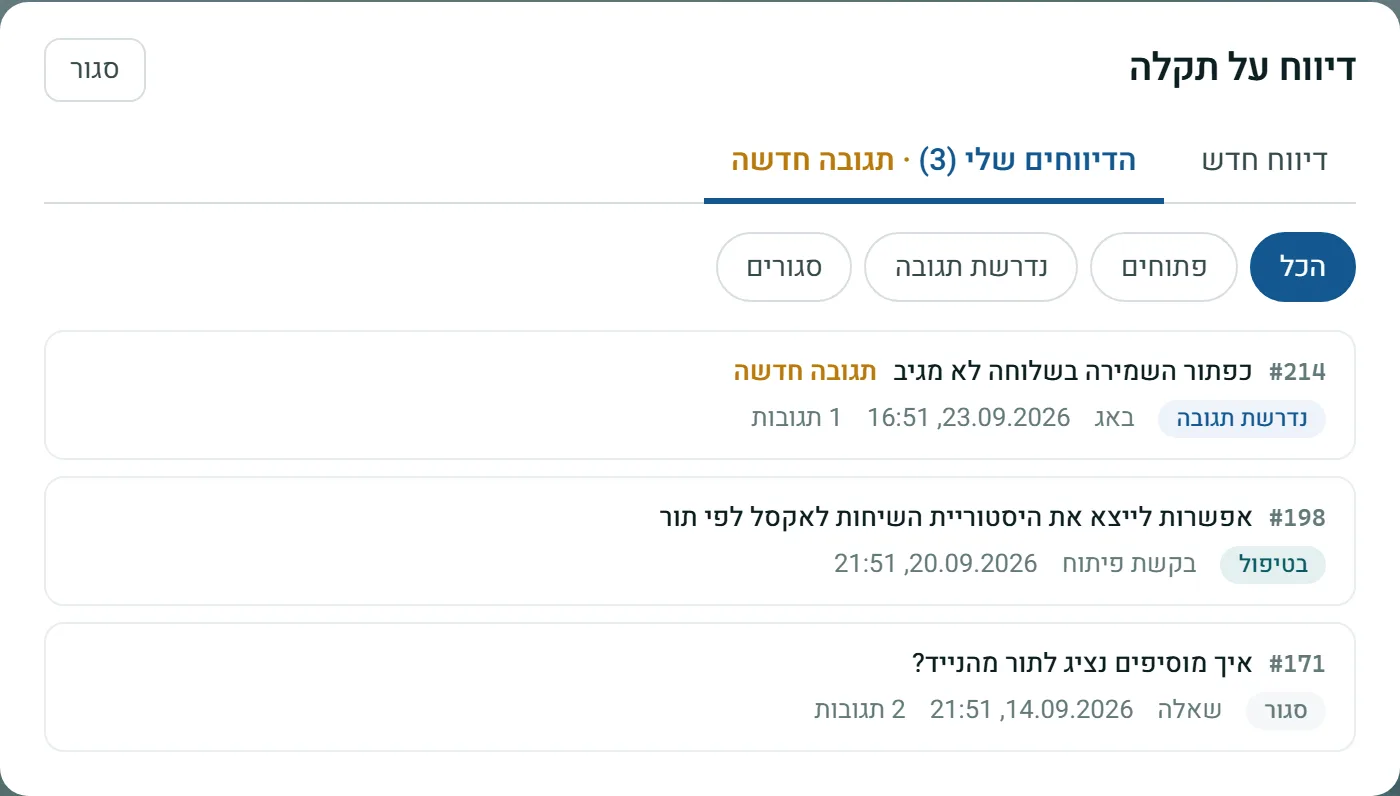
- New — the report was received and has not been handled yet.
- In progress — the team is working on it.
- Response needed — the team asked you something and is waiting for an answer.
- Closed — handling is finished.
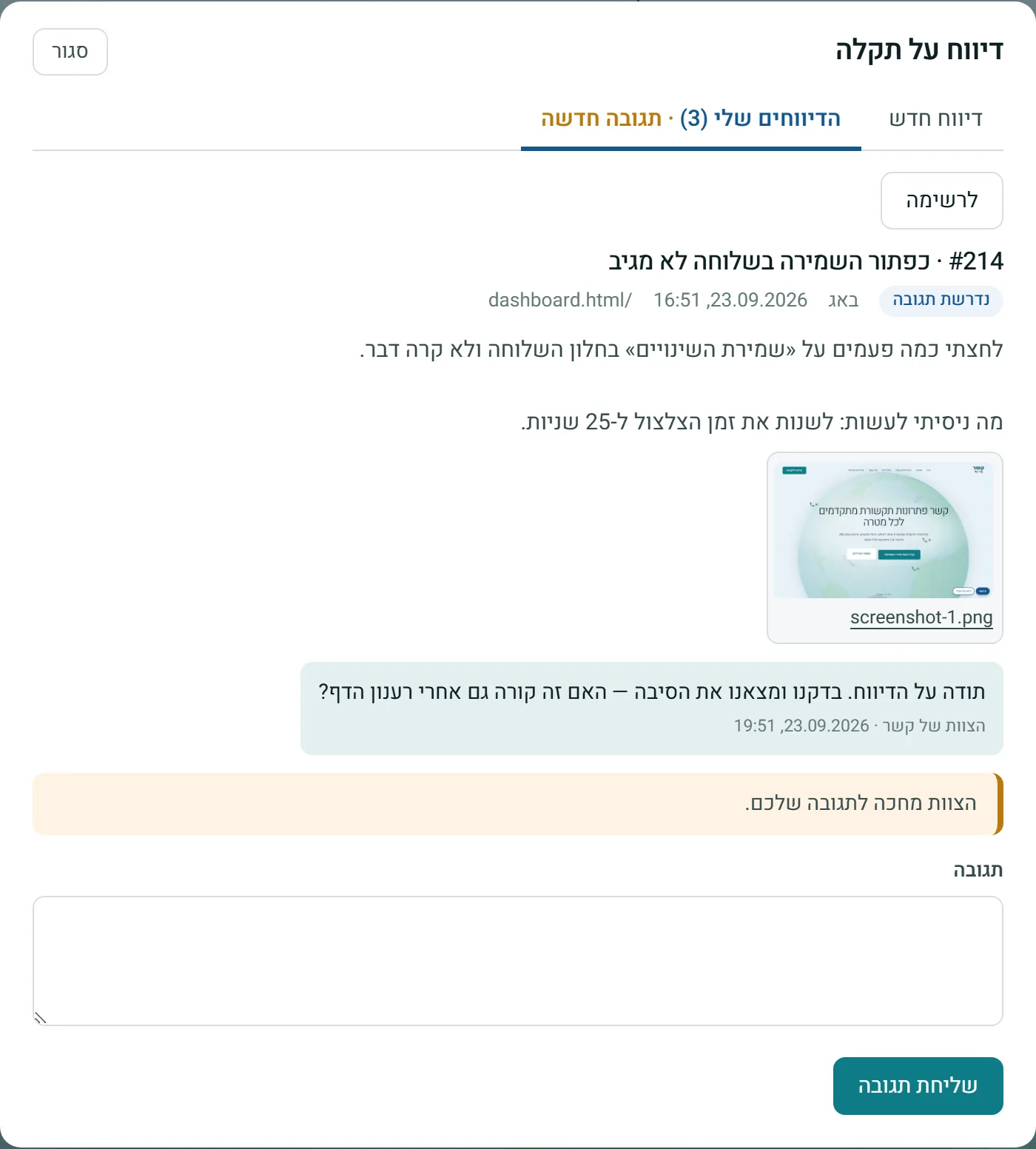
Click a report to see the description, the files and the replies, and to write a response.
Stuck? Does something on the screen not behave like in the guide? Write to us through the Contact Us page. We'll be glad to help, and also to hear what's missing from the guide.