Hold Music and Ringback Tones — What the Caller Hears Until Someone Answers
Instead of silence or a regular ringing tone, the caller can hear music or a message while waiting: in a queue, in a hunt group, or at an extension. On this screen you create the sound and upload files for it; you choose the sound itself in the place where callers wait.
What is hold music
A hold sound is a collection of one or more files (up to ten) that play to the caller for as long as they wait. When there are several files, they play one after another, or in random order if you choose that.
General background — What is music on hold in the Knowledge Center.
The screen
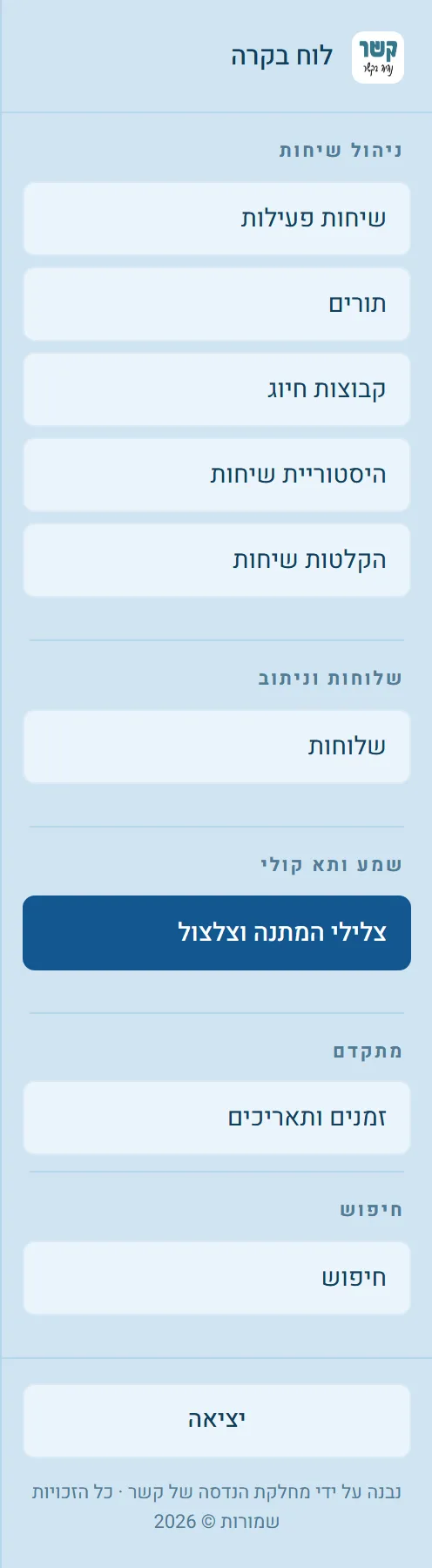
In the side menu, under Audio and Voicemail, choose Hold Music and Ringback Tones.
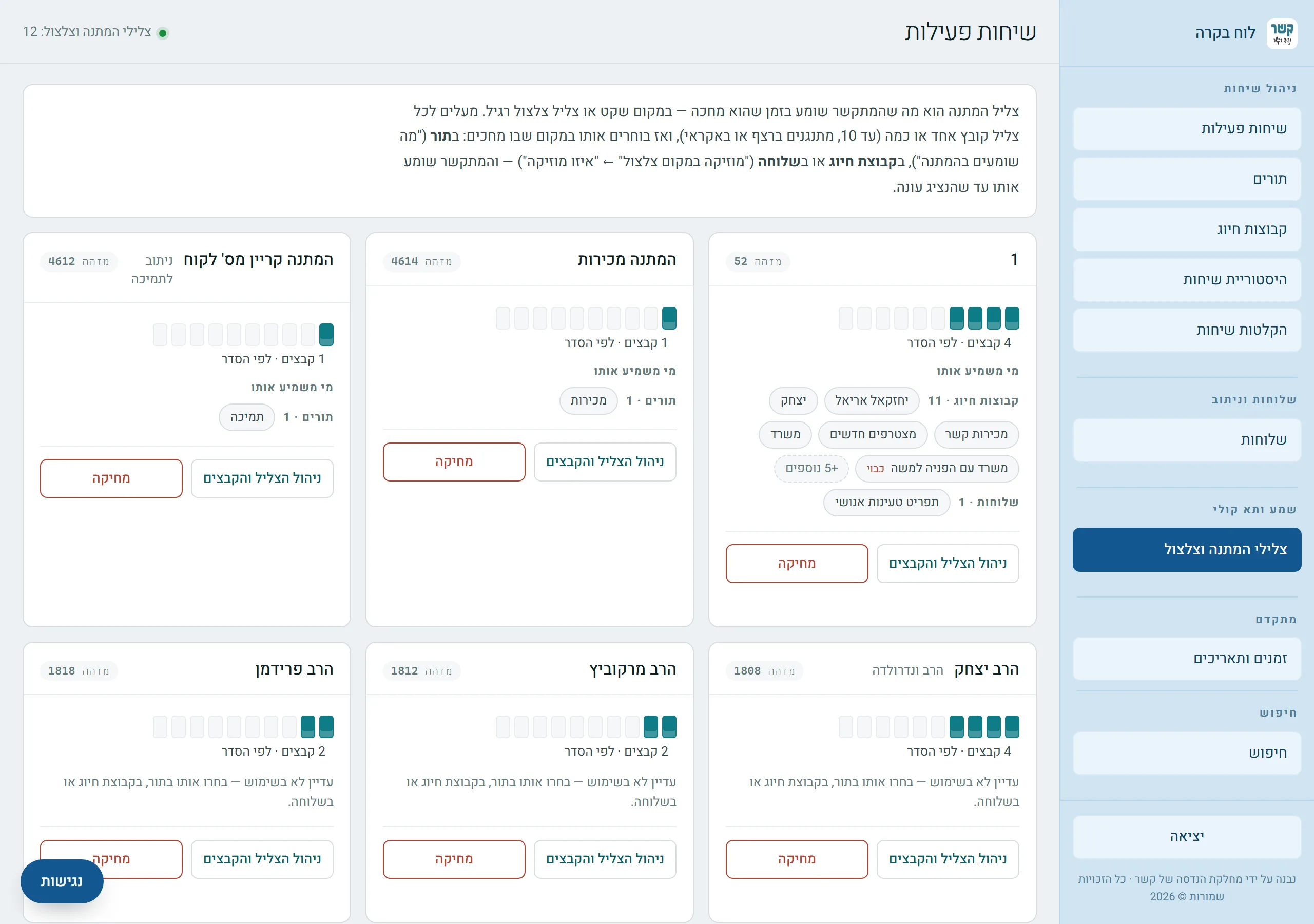
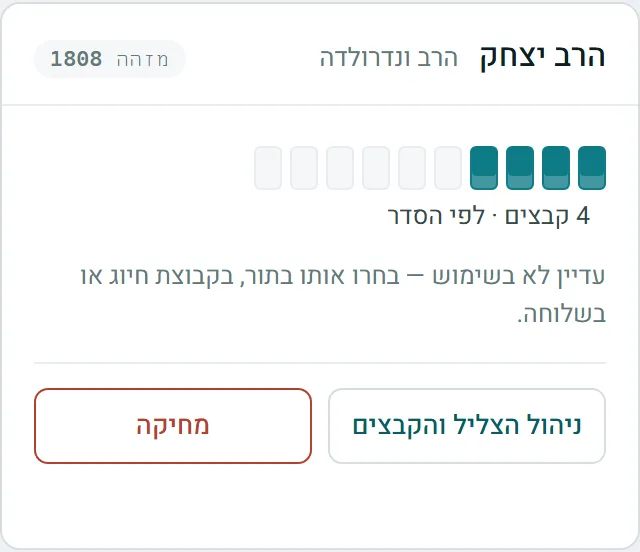
Each sound is a card: the name, the track bar — ten slots, one filled for each uploaded file — and who plays it.
Creating a sound
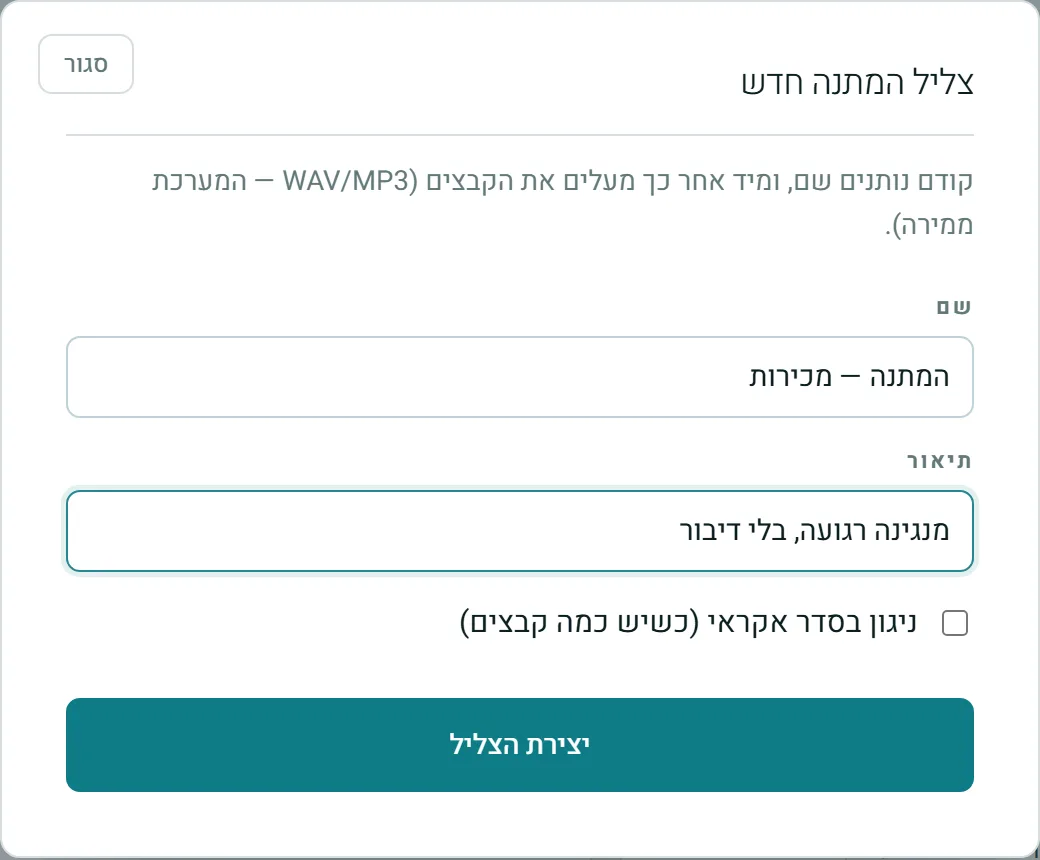
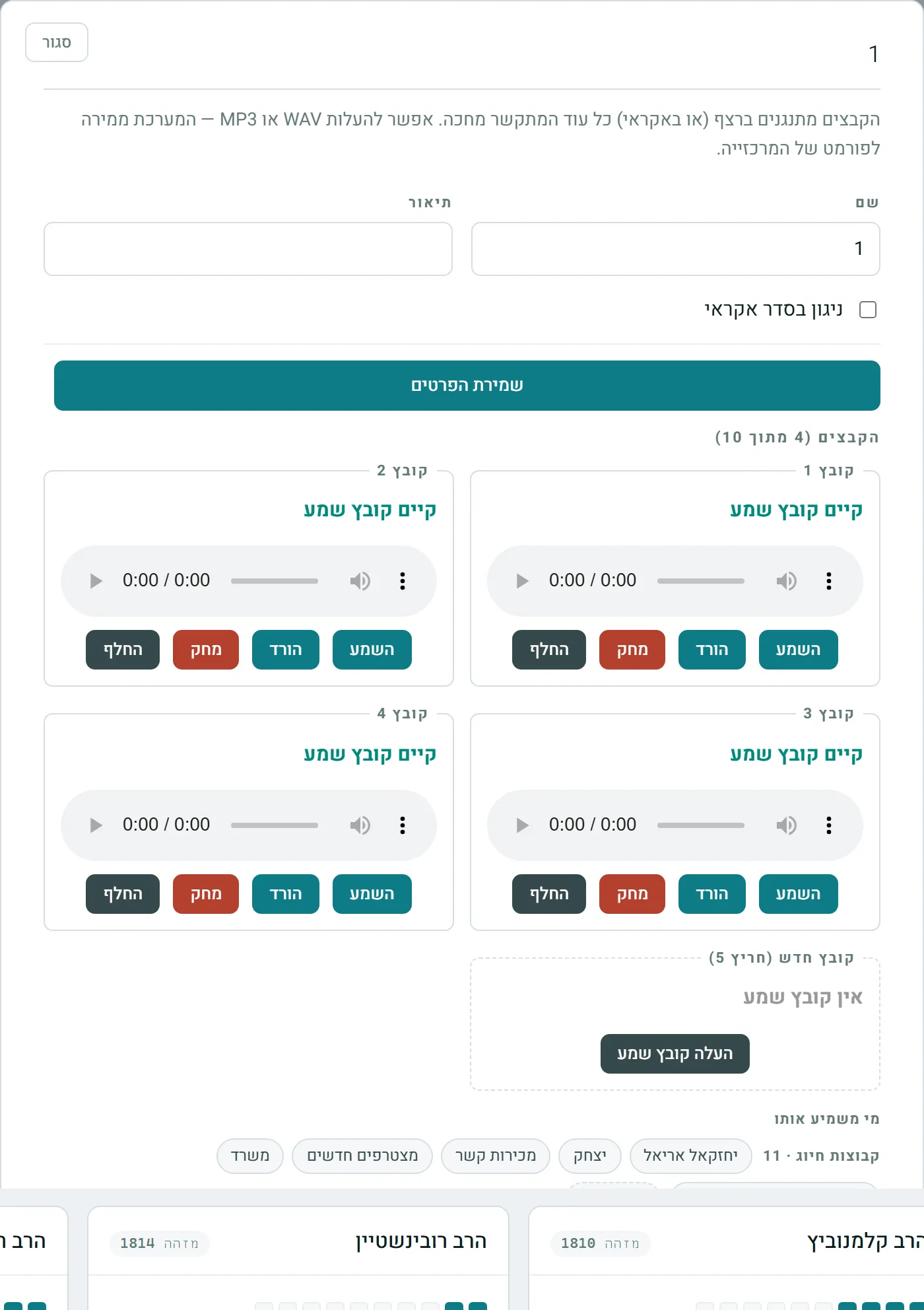
In the New Hold Sound card, click Add Sound, give it a name (this is the name that will appear in the queue and group selectors) and a description for your staff, and choose whether the files play in order or at random. Click Create Sound and the window for uploading files opens right away.
The files
The sound window shows the files that were already uploaded. Each has a player, Download, Replace and Delete, and a New File slot for uploading the next one in line. You upload WAV or MP3; the system converts it to the PBX format.
Making the caller hear it
The sound is not "turned on" on this screen. You choose it in the place where the caller waits:
| Where | Setting | What the caller hears |
|---|---|---|
| Queue | "What callers hear while waiting" | The sound for the whole wait in the queue, until an agent becomes available. |
| Hunt group | Turn on "Music instead of ringing" and choose "Which music" | The sound instead of ringing, until someone in the group answers. |
| Extension | In the extension's advanced settings, in the "Audio and messages" group: choose it in "Hold music" and turn on "Music instead of ringing" | The sound instead of ringing, until the extension answers. |
Who plays it
Each card shows the queues, groups, and extensions that chose this sound, grouped by type. Clicking a name opens its settings, so you can swap a sound without searching for where it is used.
Deleting
On the card, click Delete and type the sound name to confirm. Deleting also deletes the files.
Permissions
- Hold Sounds View — to see the screen and listen.
- Hold Sounds Create — to add a sound.
- Hold Sounds Edit — to change the name, description, or order, and to upload and delete files.
- Hold Sounds Delete — to delete a whole sound.
Uploading, downloading, and playing files are also subject to the general audio permissions (Audio Upload / Download / Play / Delete).
Stuck? Does something on the screen not behave like in the guide? Write to us through the Contact Us page. We'll be glad to help, and also to hear what's missing from the guide.