What is an IP phone?
An IP phone is a desk phone that connects to the computer network instead of a phone line. IP stands for Internet Protocol — the protocol the internet is built on. The phone registers with the PBX as an extension, and gets all its features — queue, transfer, voicemail, contacts and extension keys.
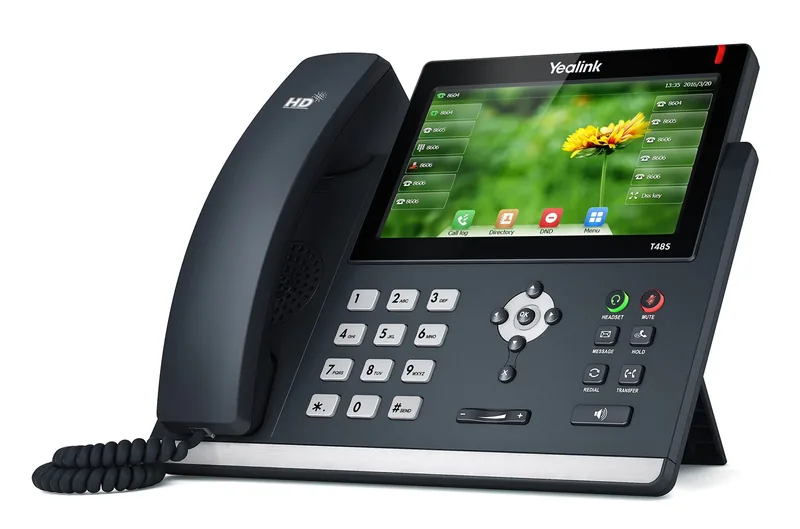
What it actually is
From the outside, an IP phone looks like an ordinary office phone: a handset, number keys, a speaker. The difference is on the back. Instead of a thin telephone jack, it has a network jack — the same kind your computer has. Your voice is turned into digital data inside it (VoIP), and that data travels across the office network and the internet to the cloud PBX.
In practice, an IP phone is a small computer whose only job is to handle calls. It has a processor, memory, an operating system and software that the manufacturer updates. That is what lets it show on the screen which queue a call came from, search a contact list, or show with indicator lights which team member is on a call right now.
Phones like these began to appear in the late 1990s, when companies started sending voice over the computer networks already in their buildings. For years they were expensive and were considered corporate equipment. Today, with the general move to cloud PBXs, this is the standard office phone.
How it works, step by step
- You plug in a network cable. If the switch in the network closet supports PoE, the phone also gets power from it — no power adapter needed.
- The phone gets a network address from the router (IP address).
- It pulls its settings — automatically (Provisioning) or from what was typed into it by hand.
- It registers with the PBX using the SIP protocol, with the extension's username and password.
- From now on it is an extension. Calls to the extension ring on it, and calls dialed from it go out through the PBX.
Most phones have two network jacks: one for the wall and one for a computer. This lets you connect the computer "through" the phone and use a single cable for each desk. It saves wiring, but if the phone fails, the computer loses its network too. In a new office, a separate cable for each device is better.
Common types
- Desk phone — a screen, a few extension keys, a speaker. Suits most employees.
- Touchscreen phone — a large screen, convenient for searching contacts and for working with many extensions. Suits managers and reception.
- Call center phone — dozens of lit keys that show the status of extensions (BLF), sometimes with an expansion module on the side.
- Wireless — a base station and handsets that you can carry around the building (DECT).
- Conference phone — for the meeting-room table, with microphones that pick up the whole room (conference phone).
What makes it better than a regular phone
- Information on the screen — the caller's name, the number, and sometimes which queue or number the call came through.
- Transfer with one press — to another extension, with or without announcing the call first.
- Sound quality — most phones support wideband (HD) audio, which sounds more natural than an analog call, as long as both sides and the PBX support a matching codec.
- Mobility — take the phone home, plug it into the router, and it keeps working as the same extension.
- Remote management — keys, language and time can be updated without touching the device.
What's on the keypad
An employee who gets a new IP phone usually looks at dozens of keys and asks which of them they actually need. Here are the keys worth knowing on the first day:
- Transfer — sends the call to another extension or number. You can transfer right away, or first talk to the person receiving the call and only then transfer it (call transfer).
- Hold — pauses the call, and the caller hears music on hold.
- Mute — the caller can't hear you, but you can still hear them.
- Speaker and headset — switches between the handset, the speaker and the headset.
- Messages — a light that tells you there is a new message in the voicemail box, and a press that plays it.
- Extension keys — lights that show which team members are free, and a press that dials them.
In the first week, it is worth printing a single page with these five keys for each employee. It saves a lot of "I hung up on him by mistake."
Limitations worth knowing
An IP phone depends on the network. If the internet in the office is down, the phone can't reach the PBX. That is no reason to give it up, but it is a reason to plan: a UPS in the network closet, backup internet, and forwarding to a mobile phone when the office is unavailable.
Network quality matters too. If large files are being downloaded and videos are being watched on the same network, calls may break up. With good network equipment, you give voice priority (QoS), and in larger offices the phones are separated onto their own network (VLAN).
How to choose a phone for each desk
| Desk | What matters | Recommended type |
|---|---|---|
| Regular employee | Simplicity, decent speaker | Basic desk phone |
| Reception / secretary's office | Seeing who is free and transferring quickly | A phone with many extension keys or a touchscreen |
| Manager | Contacts, convenience | Touchscreen |
| Call center | Headset, long hours | A phone with a headset jack, or a softphone |
| Warehouse, kitchen, synagogue | Moving around the building | DECT wireless |
| Meeting room | Everyone hears and is heard | Conference Phone |
A common mistake: buying the most advanced model for everyone "just to be safe." Most employees use five keys. It is better to put the budget into the desks that really handle a lot of calls.
Buying guide: which model family for which desk
Manufacturers divide their phones into families, and the difference between them is not only price. The table explains what you get in each family and who it is meant for. The names are descriptive, not of a specific model.
| Family | What it includes | Which desk |
|---|---|---|
| Basic | Small black-and-white screen, 2–4 line keys, speaker, two network jacks | An employee who answers and dials; a guest room; a kitchen |
| Workstation | Color screen, 6–12 keys that can be set as extension keys, headset jack, usually a gigabit network port for the computer behind it | Most employees in the office |
| Touchscreen | Large screen, convenient phone book, call list, sometimes built-in Wi-Fi and Bluetooth | Managers; a receptionist who prefers a screen to keys |
| Call center / secretarial | Dozens of lit keys, an option for a side expansion module with dozens more, professional headset connection | A switchboard operator; a call center that sees the whole team |
| Wireless (DECT) | Base station + handsets, building-wide range, a battery that lasts a workday | Warehouse, kitchen, synagogue, dormitory |
| Conference | Surround microphones, loud speaker, sometimes additional microphones | Meeting room |
Four questions before you order: PoE — does the switch in the closet supply power, or does each phone need an adapter? Headset jack — someone who answers calls for hours needs it, preferably a standard type. Two network jacks — if the computer will connect through the phone, the jack should be gigabit so it doesn't slow the computer down. Expansion module — for a secretary who needs to see thirty extensions, you don't buy a phone with thirty keys but a phone plus a module.
And a tip that saves money: one family for the whole office, in two models at most. That way everyone knows how to use a neighbor's phone, and you keep one spare device in a drawer instead of three.
Day one: from the box to the first call
The phone arrives already configured, but there are still ten minutes of work at the desk. Here is how it goes, step by step:
- Assemble the stand. Most phones have a stand with two angles; the higher one suits someone who sits far from the screen. If you hang the phone on the wall, use the holes on the back, and remember to flip the handset hook so the handset doesn't fall.
- Connect the handset to the jack marked with a picture of a handset — not the headset jack next to it. They look identical, and this is the first mistake in every installation.
- Connect a network cable from the wall to the jack marked "Internet" or "LAN" (not "PC"). If the computer connects through the phone, run a second cable from the "PC" jack to the computer.
- Power. If the switch in the closet supplies PoE, the phone turns on the moment the network cable is connected. If not, connect the power adapter. A full startup usually takes half a minute to a minute.
- Look at the screen. When the phone registers, you see the extension's name or number and the correct time. A wrong time or a crossed-out line icon means registration hasn't succeeded yet.
- An internal test call — dial your neighbor's extension. An external test call — dial a mobile phone and check that the business number appears on the display. An incoming call — from the mobile phone to the main number, until the phone rings.
- Adjust it for the employee: ringer volume, screen contrast, and, if you want, a different ring for internal and external calls. In an open office, a different ring for each desk prevents the "whose phone is ringing?" question.
If the phone turns on, shows the correct time and an extension name, everything works. If it is stuck on "Connecting" for more than a minute, the problem is almost always the cable, the wall jack or the router, not the phone.
Routine care and common problems
An IP phone is a device that works for years without maintenance, but a few habits extend its life and prevent most support calls:
- The coiled cord of the handset is the first part to wear out. Choppy sound only in the handset and not on the speaker means it's the cord, not the phone. Keep one spare cord in a drawer.
- Don't cut the power in the middle of an update. When the phone shows "Updating," wait. Disconnecting in the middle can leave it in a state that needs remote repair.
- Cleaning — a damp cloth only. Sprays get under the keys, and a key stops responding after a month.
- The first cycle in the morning — if the office turns off the switch at night, the phones come back up in the morning and register within a minute. This is normal; don't unplug and replug to "speed it up."
| Symptom | Likely cause | What to do |
|---|---|---|
| The screen is off | There is no PoE on this jack, or the power adapter isn't connected | Move it to a jack known to supply power, or connect an adapter |
| "No service" / a line with an X | The phone isn't registering: cable, router, or password | Try another cable, restart; if all the phones are like this, it's the internet |
| It rings but there is no audio | A firewall is blocking the voice, or the handset is in the headset jack | Check the jack; if it happens on all phones, check the firewall |
| You hear only on the speaker | The headset key is lit (indicator light) | Press the headset key |
| The time is wrong | Time zone or time server | Fixed remotely in the settings, not on the phone |
| The computer behind the phone has no network | The cable in the "PC" jack is loose, or the phone is off | Secure the cable; for the long term, a separate jack for the computer |
How it works with us at Kesher
We work with Yealink, Fanvil, Cisco and AudioCodes phones: desk phones for workstations, touchscreen phones, call center phones with dozens of keys, wireless phones and conference phones. Each phone arrives already set up for its extension — you connect it to a network line and it works.
On the "Extensions" screen in the control panel you can see for each extension whether it is registered and from which device. That way, when an employee says "the phone isn't working," you can check in a second whether the phone is even connected to the PBX.
If you don't have a proper network, we set up a network closet: cables from every desk, a patch panel, a PoE switch that powers the phones, a router, a UPS and a label for every point.
And even when the office has no power or no internet, the PBX itself keeps working in the cloud and forwards calls to a mobile phone, another branch or voicemail — so customers don't run into a phone that doesn't answer.
FAQ
Can I connect an IP phone to a regular telephone jack in the wall?
No. An IP phone needs a network jack. If you only have old telephone wiring, you can keep using the old phones through a SIP adapter, or run network cables.
Do I need a power outlet next to every phone?
Not if the switch supports PoE — then the phone gets power through the network cable. Otherwise each phone needs a power adapter.
Can I take the phone home?
Yes. Plug it into the router at home, and it registers with the PBX as the same extension, just like in the office.
What happens to the phone when the internet goes down?
It stops receiving calls until the connection returns. The cloud PBX keeps working and can forward calls to a mobile phone or voicemail.
How long does an IP phone last?
A good device usually works for five to ten years. What wears out first is the handset's coiled cord and the most-used keys, and both can be replaced.
Can I connect an IP phone over Wi-Fi?
Some models include Wi-Fi or support an adapter, but for a fixed desk a cable is always better: it is more stable and allows power through the cable. Keep Wi-Fi for places where you can't run a cable.
Why does the phone show the wrong time?
The phone gets the time from a network time server according to the time zone set on it. If it is wrong, it is a setting that is fixed remotely, and sometimes a sign that the phone hasn't managed to register at all.