What Is a Network Cabinet?
A network cabinet is a metal cabinet in which all of the office's network equipment is gathered: the router, the switches, the patch panel for the network points, and power backup. It is the "heart" from which all the lines to the rooms go out.
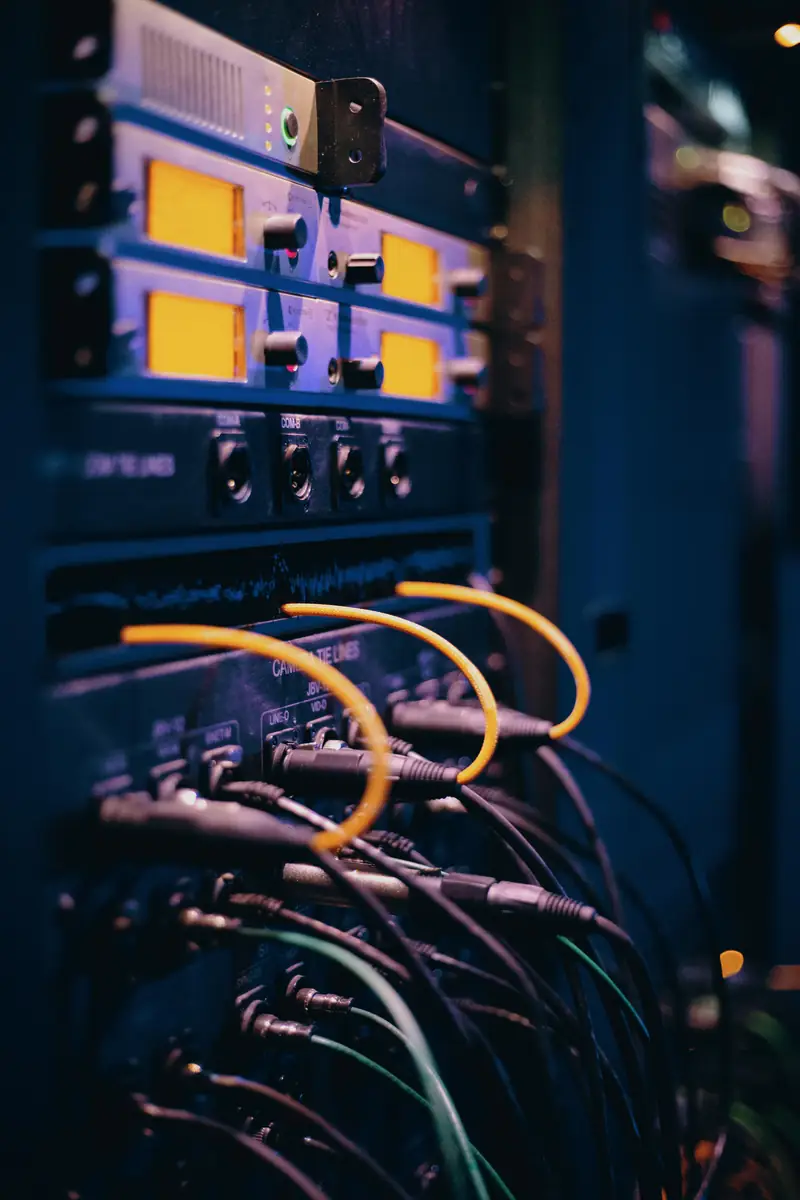
What a network cabinet is
Every phone, computer and printer in the office ends up connected to one point. If that point is a pile of boxes and cables on the floor behind a door, every problem turns into a treasure hunt. If it is a tidy network cabinet, every problem is solved in minutes.
A network cabinet (in English a rack, and in professional slang "rak") is a metal cabinet with vertical rails inside, onto which equipment is bolted in rows. All professional equipment — switches, patch panels, business routers, UPS units — is built to a uniform width of 19 inches (about 48 cm), exactly so that it fits into a cabinet like this, one above the other, with no improvised shelves.
This is where the office network comes together: all the network cables from the rooms enter it, the internet connection arrives at it, and from there everything connects to everything. That is why, in an office that works with a cloud phone system, the cabinet is the physical connection that all the telephony rests on.
What's inside
The order in the cabinet is not random. From top to bottom, in a typical office cabinet:
- Patch panel — this is where all the cables from the network points in the rooms arrive, each to a numbered port.
- Cable organizer — a bar with rings or a brush that guides the short cables neatly.
- PoE switch — connects all the points and supplies power to the phones through the cable. See PoE.
- Router — the connection to the internet, and next to it sometimes the provider's modem or fiber converter.
- Power strip — organized power for all the equipment.
- UPS — power backup. It is heavy, so it sits at the bottom.
- Sometimes also — an adapter or gateway for analog phones and fax, a camera recorder, a local server.
The rule: the patch panel and the switch are close to each other, so the short cables between them are really short — half a meter, not three. Heavy equipment goes at the bottom, so the cabinet isn't top-heavy.
Sizes: what a U is and how much you need
A cabinet's height is measured in U units. One unit is 1.75 inches, about 4.45 cm. A 24-port switch usually takes 1U, a 24-port patch panel is also 1U, and a UPS for a cabinet takes 2U or more.
| Type | Common height | Best for |
|---|---|---|
| Small wall cabinet | 6U to 9U | A small office, a shop, a branch — up to about 15 stations |
| Large wall cabinet | 12U to 15U | A medium office, dozens of stations, several switches |
| Floor cabinet | 22U to 42U | A large office, a call center, an institution with servers |
Beyond height, the depth matters. Wall cabinets usually come in a depth of 45 to 60 cm, and floor cabinets are deeper. Before choosing, check the depth of the longest equipment — usually the UPS or the business router — and leave room for cables at the back.
The most important rule: don't buy exactly according to what you have today. Leave at least a third of the cabinet free. Offices grow, cameras get added, another switch, a fiber converter from a new provider. A cabinet that is full to the brim quickly becomes a cabinet with equipment piling up next to it.
How to plan and set up a cabinet, step by step
1. Walk through the office. Start on foot, not with a catalog. Go room by room and mark: where each employee sits, where the reception desk is, where the printer is, the meeting room, Wi-Fi points and cameras. Check where the provider's internet line comes in, and where there are conduits, suspended acoustic ceilings or drywall walls that cables can be run through.
2. Choosing a location for the cabinet. Look for a central spot, so that the longest run stays under 100 meters. Also: a nearby power outlet, a ventilated place, convenient access for the technician, and not in everyone's way. A hallway, a utility room or a corner of the management room is better than a closed storeroom next to a water heater.
3. Planning the points. One network point for each station, and at stations that have both a phone and a computer, one point is enough when the computer connects through the phone, or two if you want separation. Add spare points in each room. From this you know how many ports you need in the patch panel, and how many ports in the switch.
4. Pulling the cables. From each point, pull one continuous cable, with no intermediate joints, all the way to the cabinet. The cables run in conduits or in the ceiling, away from power lines, with no sharp bends. Leave a little slack at each end, so that it is possible to repair in the future without pulling a new cable.
5. Connecting to the patch panel. Each cable ends in a numbered port on the patch panel in the cabinet, and on the other side in a wall jack next to the desk. The cables arrive at the panel organized, tied in soft bundles, and not as a tangle.
6. Installing the equipment. Bolt the switch below the patch panel, the router below the switch, and the power strip and UPS at the bottom. Connect the switch and the router to the UPS, so that in a power outage both the network and the phones that get power from the switch keep working. Connect each port on the panel to a port on the switch with a short cable.
7. Labeling. Every point gets a number, written at both ends: on the wall jack and on the patch panel port. A common method: floor and number, for example 1-12. Also label the short cables in the cabinet with where they go. On the inside of the cabinet door, stick a table: point, room, station, switch port.
8. Testing. Every run is tested with a cable tester, which verifies that all eight wires are connected correctly and that there is no short. Then you connect the phones, make sure each one powers up, gets an address and registers, and make a test call from every station — incoming and outgoing.
Heat, ventilation and location
Network equipment produces heat all the time, 24 hours a day. A PoE switch that powers dozens of phones is hotter than a regular switch, because some of the power it passes on turns into heat. In a closed cabinet with no airflow, the temperature rises, and the equipment starts to behave strangely: a router that freezes in the afternoon, a switch that restarts, a UPS battery that wears out quickly.
- Ventilation openings — a cabinet with a perforated or mesh door, not a sealed glass door, when it stands in a room without air conditioning.
- Roof fan — in loaded cabinets, install a fan that draws the hot air out from the top.
- Clearance around it — don't squeeze the cabinet into a niche with no air movement.
- Not near water — not under pipes, not next to a dripping air conditioner, not in a shelter that floods in winter.
- Locking — a cabinet that locks keeps someone from "making room" and accidentally unplugging a cable.
Why a cabinet and not a "corner"
Equipment left on the floor heats up, gathers dust, gets kicked during cleaning and gets disconnected. Cables dangling in disorder turn every change into a risk: you pull one cable, and three others come out with it. And above all — nobody knows what is connected to what.
In a cabinet everything is organized, closed and labeled. When an employee calls and says their phone isn't working, you look at the point number on the wall, find it on the panel, and see right away whether there is a light on the matching port on the switch. A problem that would have taken an hour of searching is solved in a minute.
Real-life examples
An office of eight employees in Bnei Brak. A small wall cabinet in a hallway: a patch panel, a small PoE switch, the router and the provider's fiber converter, and a UPS. One point from each desk, and the computer connects through the phone. There is free space left for another switch.
A yeshiva with a dormitory. A main cabinet in the yeshiva office, and another small cabinet in the dormitory building, connected to it by cable or by fiber when the distance is large. In the dormitory cabinet sits the switch that powers the dormitory station, the staff offices and the Wi-Fi points in the building. Every point is labeled by room.
A service call center with twenty agents. A floor cabinet with two PoE switches, a larger UPS and room for expansion. Every agent station is labeled with a number, and when an agent moves to another station, you only move the short cable in the cabinet — without touching the walls.
A nonprofit moving offices. In the old office there was bare equipment on a shelf in the kitchenette. In a move, you plan the points and the cabinet in advance, and pull cables before the furniture comes in — while the ceiling is still open and it is easiest.
Common mistakes
- A cabinet that is too small — bought exactly for today's equipment, and a year later a provider's converter and another switch sit on top of it.
- No UPS — then every power flicker restarts the router and the switch, and disconnects all the calls in the office.
- A UPS that was never tested — a battery has a lifespan. A UPS that sits for years without testing may hold nothing on the day it is needed.
- Cables that are too long in the cabinet — three-meter cables between the panel and the switch create a tangle that hides the lights and makes every change difficult.
- No labels and no table — the technician who set it up remembers everything. Until he isn't available.
- A cabinet in a hot or wet place — a storeroom with no ventilation, next to a water heater, under pipes.
- Splitters outside the cabinet — small switches added under desks instead of pulling a point. Each one of them is a point of failure that nobody knows about.
A full example: a cabinet for a 25-station office, day by day
An import company moves into a new office on the third floor: 25 stations in three open rooms, a management room, a reception desk, a meeting room and a kitchenette. The office is empty, the acoustic ceiling is still open, and the furniture arrives in two weeks. This is what the project looks like, day by day.
Day 1: Walk-through and planning. Go through with the office plan and mark every station. Count: 25 points for stations (phone, and computer through the phone), 2 for reception (a switchboard phone and a separate computer), 1 for the meeting room (a conference phone), 2 for printers, 3 for ceiling Wi-Fi points, 4 for cameras, 1 for the fax adapter. A total of 38. Add a spare point in each room, six rooms, and you reach 44 points. The conclusion: two 24-port patch panels, and a 48-port PoE switch. The cabinet location: a niche in the hallway next to the management room, which the provider's line already reaches, and the farthest run from it, to the corner of the meeting room, is about 35 meters along the actual route.
Day 2: Routes and ordering. Mark a main route in the ceiling for each room, check where the power and lighting cables run so as to stay away from them, and decide on a drop inside the drywall for each point. Calculate length: 44 points at an average length of about 25 meters, that is about 1,100 meters of cable, and order four 305-meter rolls of CAT6. On the same day, order the cabinet and the equipment (the list is in the next section), so they arrive before installation day.
Days 3 to 4: Pulling cables. Two people, an open ceiling, no furniture. Each cable is labeled at both ends as soon as it is pulled, with temporary marking tape, before it gets mixed up with forty others. The bundles in the ceiling are tied with soft Velcro straps, not zip ties.
What follows: from completion to handover
Day 5: Finishing and testing. Mount the cabinet on the wall, bolt the two patch panels at the top, and terminate 44 cables in the ports: each cable to the number assigned to it on planning day. On the room side, install the jacks in the walls. Then go over every point with a cable tester. Three runs fail: two because a wire wasn't locked into the jack, one because a cable was crushed next to a beam. Fix them the same day, and only then close the ceiling.
Day 6: Equipment and power. Bolt a cable organizer under the panels, the switch under it, the router and the provider's fiber converter under the switch, and the power strip and UPS at the bottom. Connect 44 short half-meter cables from the panel to the switch, in one color for phones and another color for cameras and Wi-Fi points. The router and the switch are connected to the UPS; the printers and computers are not. A short power test: unplug the strip from the wall and see that the switch and the router keep running.
Day 7: Phones and handover. The furniture is already in. Place a phone at each station, connect it with a short cable to the wall point, and make sure each phone powers up and registers. A test call, incoming and outgoing, from every station, including the meeting room. Stick the points table on the inside door of the cabinet, photograph the inside of the cabinet, and give the office manager the table, the photo and the location of the cabinet key.
The whole process, from walk-through to handover, took one working week in this case. The long part is pulling the cables, and it gets much shorter when you work before the furniture comes in and longer when you have to open a closed ceiling above occupied desks.
Equipment list for a 25-station cabinet
What was actually ordered for the project in the example. No prices, only what and why:
- 12U wall cabinet, 60 cm deep, perforated door and a lock. 12U because the equipment takes about 7U and room is left for expansion.
- Two 24-port patch panels (1U each), and two horizontal cable organizers (1U each) beneath them.
- A 48-port PoE switch, gigabit on all ports, a power budget of about 370 watts, 19 inches wide with mounting ears. See network switch.
- A business router and the internet provider's fiber converter, on a 1U shelf.
- A UPS for the cabinet (2U) with a rating that suits the switch and the router together, with spare capacity. See UPS.
- A cabinet power strip with a switch, powered from the UPS.
- Four 305-meter rolls of CAT6 cable, solid copper, unshielded.
- 44 Keystone jacks for the walls, and 44 wall boxes or panels.
- 44 short half-meter cables for the cabinet, in two colors, and 44 cables of 2 to 3 meters for the stations.
- Velcro straps (not zip ties), labels that suit a label printer, and marking tape for the pulling stage.
- A cable tester, a punch-down tool, and a pull string.
- Grounding: a grounding bridge from the cabinet to the building's grounding point, as required for every metal cabinet.
Two things that are deliberately not on the list. An additional switch: 48 ports for 44 points leaves only four free, which is why the 12U keeps room for a second switch for the day it's needed. A local server: with a cloud phone system there is no need for one for telephony, and this is exactly why the cabinet stays small and quiet.
What goes wrong in cabinets: four recurring problems
Heat. The classic sign: the router or the switch "freezes" in the afternoon, when the office is hottest, and works again after a restart. The cause: a cabinet closed in a niche with no airflow, or equipment crammed unit on unit. The fix: a perforated door, a roof fan, and an empty unit between the switch and the UPS. A simple thermometer on a shelf in the cabinet helps you tell whether this is the problem.
Unlabeled cables. The sign: a problem at one station drags on for an hour, because nobody knows which port on the panel belongs to it, and cables of other stations get unplugged "to try". The cause: labeling was put off until "later" and never done, or the table wasn't updated after changes. The fix: one working day with a cable tester and a toner, relabeling both ends, and a new table on the door.
No UPS, or a dead UPS. The sign: every power flicker disconnects all the calls in the office, and the phones come back only after a minute or two. Or: there is a UPS, but in a real outage it beeped for three seconds and shut off. The cause: a battery that quietly ran out after three or four years. The fix: a self-test of the UPS once a month, and replacing the battery on a schedule and not after a failure.
Power and network in the same bundle. The sign: a hum or crackling sound at certain stations, which gets worse when an air conditioner or a large printer is running. The cause: the power cables of the equipment in the cabinet are tied together with the network cables, or the runs to the rooms were pulled in the power conduit. The fix: in the cabinet, power on one side and network on the other; in conduits, a divider or a separate route. See network cable.
Maintenance checklist: monthly and yearly
A cabinet that was set up correctly doesn't need much, but it does need something. A short list that someone in the office, not necessarily a technician, can go through:
Once a month (five minutes):
- A look at the lights: all the ports that should be lit are lit, and there is no red or orange light that wasn't there before.
- A hand on the switch and on the UPS: warm, but not hot.
- A UPS self-test from its button, or simply: unplug it from the wall for a moment and make sure the switch and the router stay on.
- The door is locked, and there is no new cable that someone "added" without a label.
Once a quarter:
- Dusting the ventilation openings and the fan with compressed air.
- Updating the table on the door: every station that moved, every point that was added.
- Counting free ports on the switch and free jacks on the panel, to know in advance when expansion is needed.
Once a year:
- Testing the UPS battery under a real load, and replacing it after three to five years even if it "still works".
- A software update for the switch and the router, at a time when the office is closed.
- An up-to-date photo of the inside of the cabinet, next to the table.
- Tightening the equipment screws to the rails, and checking that the cabinet's grounding is connected.
After every change: a new label on the cable, a new row in the table. This is the rule that is easiest to break and most expensive to fix.
How the cabinet connects to the cloud phone system
The diagram at the top of the page shows the route. The phone on the desk is connected by a network cable to a wall jack, the cable reaches the patch panel in the cabinet, from there by a short cable to the switch, from the switch to the router, and from the router through the internet provider to the phone system that sits in the cloud. There is no phone system in the cabinet itself: no box with line cards, no telephony server, nothing to "connect to" when you make a call. The cabinet is just the organized way in which every phone reaches the internet.
This changes what failures mean. When the cabinet goes down, for example in a long power outage that the UPS can't hold, the phones in the office go silent, but the business's number keeps answering: the cloud phone system detects that the extensions are not registered and routes the calls to a mobile phone, to another branch or to voicemail, according to what was set in advance. See backup and redundancy.
And the reverse: a problem in the cloud phone system, however rare, has nothing to do with the cabinet, and there is no point in restarting the switch because of it. A simple rule for whoever is diagnosing: if the computers are browsing and the phones are "not registered", the problem is beyond the cabinet; if the computers also have no internet, the problem is in the router or with the provider; if only some of the stations went down, the problem is in the switch or the runs, that is, in the cabinet.
How it works with us at Kesher
When an office moves to us and has no organized infrastructure, we set up a network cabinet to create the connection. We start with a walk-through: we understand where everyone sits, where the phones and computers will be, and where the internet comes in. Based on this, we choose the location and size of the cabinet.
From there we pull cables from every station to the cabinet, connect them to a patch panel, and install a PoE switch, a router and a UPS. The switch gives every phone network and power over one cable, and the UPS protects the router and the switch, so the phones keep working in a short power outage.
Every point is labeled at both ends, at the wall and at the panel, and every run is tested before we finish. The phones we supply, from Yealink, Fanvil, Cisco and AudioCodes, arrive preconfigured, and after connecting we check that every extension registers with the phone system and make test calls.
After setup, in the phone system's control panel you can see for each extension whether it is registered and from which device. If a phone stops working, the point number on the wall leads straight to the port on the panel and the port on the switch. And if the whole cabinet goes down — for example in a long power outage — the cloud phone system keeps working, and routes the calls to a mobile phone, a branch or voicemail.
We also stay in the picture after handover. When a station moves to another room, when an employee joins, or when a point needs to be added, you can contact us and ask us to make the change, and for any question a person answers, not an automated system. The settings of the extensions themselves, who rings where and where a call goes when the office is unavailable, are done in the control panel in Hebrew, without touching the cabinet.
FAQ
What size network cabinet does a small office need?
Usually a 6U to 9U wall cabinet is enough for an office with up to about 15 stations. It's always worth leaving at least a third free for expansion.
What is a U in a network cabinet?
A unit of height of about 4.45 cm. Most switches and patch panels take one unit, and a UPS for a cabinet usually takes two or more.
Does a network cabinet need air conditioning?
In a small cabinet in an air-conditioned or ventilated room, ventilation openings are usually enough. In a loaded cabinet or a hot room, a roof fan is worthwhile, and in large server rooms — dedicated air conditioning.
Where is the best place to put the cabinet?
In a central place, close to a power outlet, ventilated, away from water and accessible to the technician, so that the longest run stays under 100 meters.
Do you need a cabinet with a cloud phone system too?
Yes. The phone system itself is in the cloud, but the phones in the office still need a network, power and an internet connection — and the cabinet is the organized place where all of these meet.
How long does it take to set up a network cabinet for a 25-station office?
Usually about one working week, most of it pulling cables. When you work before the furniture comes in and the ceiling is open, it is faster; in an occupied office with a closed ceiling, it takes longer.
Does a network cabinet need grounding?
Yes. A metal cabinet is connected to the building's grounding point, like any metal electrical equipment. It is part of a proper installation and protects both the equipment and anyone who touches the cabinet.
Can an existing cabinet be moved to a new office?
The equipment, yes: the switch, router, UPS and patch panels move with you. The cables in the walls stay behind, and in the new office you pull cables again. It's worth planning this before the furniture comes in.