What is a SIP adapter?
A SIP adapter (ATA — Analog Telephone Adapter) is a small box that connects a regular phone or a fax machine to the network. The phone cable goes in on one side, a network cable on the other, and the old phone becomes an extension on the cloud PBX.
What the adapter actually does
An analog phone — the ordinary home phone with the curly cord — speaks the language of electricity: voltage on the line, current that flows when you lift the handset, a ring signal, and tones generated when you press the digits. An IP phone speaks a completely different language: packets of data traveling over the network, according to the SIP protocol. These two worlds don't understand each other.
The adapter is the interpreter. Facing the phone, it behaves like a phone company line: it gives a dial tone, rings when there is a call, and hears which digits you dialed. Facing the phone system, it behaves like a full IP phone: it registers with a username and password, receives calls and sends them. The result — the old phone doesn't know anything has changed, and the phone system doesn't know that behind the adapter sits a device from twenty years ago.
From the phone system's point of view, each phone port on the adapter is a separate extension. An adapter with two ports = two extensions, each with a name, voicemail box, ring time and all the settings that any other extension has.
The ports: what connects where
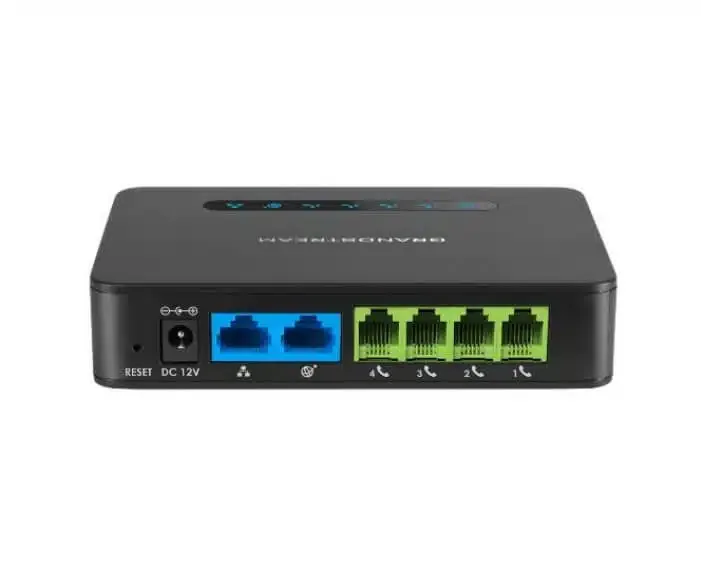
On the back of the adapter there are two kinds of sockets, and it's important not to mix them up:
- Phone ports (PHONE / FXS) — small sockets, the size of a regular phone jack. This is where you connect the phone, fax machine or intercom. Such a port "supplies the tone" to the device, which is why it's called FXS.
- Network port (LAN / Internet) — a wider socket, like on a computer. This is where you connect a network cable coming from the router or the switch.
- Power — a small power adapter. Larger models that sit in the communications cabinet sometimes have a built-in power supply.
The classic mistake: plugging the phone cable into the network socket, or the other way around. The sockets look similar to someone who isn't used to them, but a phone jack is narrower. If there is no tone at all, this is the first thing to check.
Connecting it, step by step
When the adapter arrives already configured, connecting it takes a few minutes:
- Connect a network cable from the router or the switch to the adapter's network port.
- Connect power and wait a minute or two until the lights settle. The adapter gets an address on the network and registers with the phone system.
- Connect the phone to the first port (usually marked PHONE 1 or 1).
- Pick up the handset — you should hear a dial tone.
- Make a test call: to another extension in the office, and then from outside to this extension, to make sure both outgoing and incoming calls work.
If there is a tone but calls don't go through, the adapter probably hasn't registered with the phone system — usually because it has no internet, or the network is blocking it. If there is no tone at all, the problem is closer: the phone cable, the socket, or the adapter isn't getting power.
Where adapters are used
- Fax — the old fax machine in the office keeps working as an extension. Worth knowing: fax over the internet is more sensitive than a voice call, and in many cases a virtual fax — sending from the computer and receiving by email — is more reliable and convenient.
- Old phones you want to keep — an office with ten good phones doesn't have to throw them out on the day it moves to the cloud.
- Dormitory and student rooms — a simple analog device is cheap, durable and doesn't attract hands. Connect it through an adapter, and it becomes an extension that can be restricted and routed like any other extension. This fits well with a student phone.
- Intercom and electric gate — many entrance intercom systems connect as an analog phone line. Through an adapter, they can dial an extension at the reception desk or a mobile phone.
- Elevator or stairwell phone — a simple emergency phone that only needs to dial one place.
- Older devices that dial on their own — for example alarm systems and old credit card terminals that work over a phone line. Here it's worth checking in advance, because not every such device works well over the network.
How many ports you need
Adapters come in several sizes, and the choice is simple: how many analog devices there are in the same place.
| Number of ports | Best for | Where it sits |
|---|---|---|
| 2 | A fax and a phone, or two adjacent rooms | Next to the device, on the desk or on the wall |
| 4 | A small office, a floor in a dormitory | Next to the router or in a small cabinet |
| 8 | A wing, several rooms with existing phone wiring | In the communications cabinet |
| Dozens | A whole building with old wiring | A large gateway in the communications cabinet |
When the devices are spread around a building, there are two ways. You can put a small adapter in each room, next to a network jack. Or you can put one large adapter in the communications cabinet and use the existing phone wiring that runs from every room to the cabinet. The second way saves pulling new cables — it is covered in more detail in the article on FXS, FXO and gateways.
Limitations worth knowing
- The adapter doesn't upgrade the phone. There are no extension keys, no display showing who is calling (unless the phone supports standard caller ID), and no phone book. Whatever the phone could do before is what it can do now.
- Dependence on network and power. An old analog phone kept working even when the power at home went out, because the line itself supplied it with power. An adapter needs power and internet. Without a UPS, a power outage = silence.
- Fax and other sensitive data devices. Voice tolerates a small loss of data on the network; fax is less tolerant. On an unstable network, faxes may come out cut off.
- Distance. You can run a long phone cable between the adapter and the phone, but not endlessly. With old, very long wiring, it's worth testing first.
Even so, for a station that only needs to dial and answer, an adapter is a cheap and simple solution. For a station that handles many calls — reception, a call center, a secretary's office — a real IP phone is preferable.
Tips before you start
- Make a list of all the analog devices: where they are, what they are used for, and who needs to reach them. It often turns out that half of them are no longer in use.
- Check the wiring before deciding on a central gateway: if all the wires reach one point, it saves a lot of work.
- Give each extension a clear name — "Dormitory Floor 2", "Accounting Fax" — so that it's clear in the call log what happened.
- Don't change settings on the adapter yourselves. An adapter that is configured correctly tends to work for years. An accidental change in its interface is the common reason for "it suddenly stopped."
Installation, described in words
The article described the order of connection. Here is what you see at each step, so that whoever is installing knows they are on the right track.
- In the box. A small black box the size of a palm, a power adapter with a thin cord, and a short network cable. On the front is a row of lights: power, network, and a light for each phone port. On the back: a round power socket, one wide network socket (sometimes two — "WAN" for the router and "LAN" for a computer), and narrow, numbered phone sockets.
- Placement. Next to the router or next to the analog device — whichever is closer to a network jack. Not behind a refrigerator and not inside a closed cabinet without ventilation; the adapter gets a little warm.
- Network first. The network cable from the router to the wide socket. The network light starts to blink.
- Power. The power light comes on steadily. For half a minute to two minutes the lights blink — the adapter is starting up, getting an address and registering. Wait until the power and network lights are steady.
- The phone. A phone cable from the device to the narrow socket marked 1. On many models the port light comes on only when the extension is registered — this is the easy way to know that everything is fine without lifting the handset.
- The handset. A continuous dial tone — good. Silence — check the phone cable and the socket number. A broken (stuttering) tone — on many systems this is a sign of a waiting message in the voicemail box, not a fault. There is a tone but the call doesn't go out — the adapter works but isn't registered with the phone system: an internet problem.
- Fixing in place. After both test calls have gone through, fix the adapter to the wall using the holes on the back or double-sided tape, and gather up the cables. An adapter that dangles on the desk is an adapter that will get disconnected.
If the building loses power, the adapter starts up by itself when power returns — there's no need to press anything. But the phone will work again only after the router has also finished starting up, so a minute or two of silence after a power outage is normal.
When it doesn't work: symptom, cause, fix
| What happens | Likely cause | What to do |
|---|---|---|
| No dial tone at all | The phone cable is in the network socket, the wrong phone socket (2 instead of 1), or the adapter has no power | Check that the lights are on and that the narrow cable is in the narrow socket marked 1; replace the phone cable |
| There is a tone, but the call doesn't go out | The adapter isn't registered with the phone system — no internet, or the network is blocking it | Does a computer on the same jack browse? If not — the router. If so — the firewall |
| It rings, you answer, and only one side can hear | One-way audio: the sound doesn't come back through the router (NAT) | A routing problem on the network, not in the adapter; handled in the router settings or remotely |
| The call drops after a fixed amount of time | The router "forgets" the connection in the middle of the call | Same fix as one-way audio |
| The fax fails or comes out cut off | Fax is sensitive to packet loss and compression; a busy network or an unsuitable codec | A cable instead of Wi-Fi to the router, with priority for voice; if it still fails — a virtual fax |
| The phone rings nonstop or keeps ringing after being answered | An old analog device that doesn't suit the adapter's ring signal | Try a different phone; if it works, the problem is in the device |
| Caller ID doesn't appear on the phone's display | The phone doesn't support caller ID, or the caller ID standard is different | Check on a different device; this is a setting on the adapter that is fixed remotely |
The order of checks that saves the most time: lights, phone cable, network cable, a computer on the same jack. Four one-minute checks, and only if all are fine — call support with an exact description.
An end-to-end example: a dormitory with old wiring
A small yeshiva is moving to the cloud. The dormitory building has three floors, with two old analog phones in the hallway on each floor, and all the wires already run to the cabinet on the ground floor from the days of the old PBX. Six stations, zero network cables on the floors.
- Count. Six stations today, and two more for a wing that will be built — choose an eight-port adapter in the cabinet, and not a small adapter on each floor.
- Label. Before connecting, test each pair of wires in the cabinet with a test phone and stick on a label: "Floor 2 East." Half an hour that saves a whole evening of guessing.
- Connect. Each pair to a numbered socket on the adapter; one network cable from the adapter to the switch in the cabinet; a small UPS that powers the adapter, the switch and the router.
- Configure. Six extensions, 310–315, each named for its floor. All are restricted to internal dialing and approved numbers only, as in a student phone, and they don't ring during study hours.
- Test. From each floor, a call to the office and a call to an approved number, and from the office, a call to each floor.
The result: the students use the same devices they know, the supervisor sees in the log who dialed from which floor, and no new cable was pulled in the building.
How it works with us at Kesher
We work with Grandstream adapters in three sizes: the HT802 with two ports, the HT814 with four, and the HT818 with eight. Each adapter arrives already configured for your extensions — connect it to the network, connect the phone, and you have a tone.
Each port on the adapter is a regular extension on the phone system. In the "Extensions" screen in the control panel you can see whether it is registered and from which device, and each one has a strong password that the system generates. You can give it a name, a voicemail box, a ring time and a fallback destination, and include it in hunt groups and queues like any other extension.
In institutions, this is how we connect phones for dormitories and student rooms, and in buildings with a lot of old phone wiring we install a Grandstream gateway in the communications cabinet instead of an adapter in every room.
For those who still send and receive faxes, we also have fax from the browser: sending from a PDF, Word or image file, and incoming fax that arrives by email. We'll be glad to help you choose what suits you better — keeping the fax machine on an adapter, or moving to fax without a machine.
For fax and alarm systems we use a dedicated adapter, not a regular phone adapter: the connection is stable, and your existing fax machine or alarm panel keeps working as usual — only now through the cloud PBX. With fax you can also combine: every incoming fax arrives both by email as a file and at the machine, where it prints immediately.
FAQ
Can any old phone be connected to a SIP adapter?
Almost any ordinary analog phone works, including home cordless phones whose base connects to a phone jack. Phones from an old PBX (digital, with many buttons) usually will not work.
Does fax work through an adapter?
In most cases yes, but fax is more sensitive to network quality than a regular call. If faxes come out cut off, consider a virtual fax that works from the computer and email.
Does the adapter need a computer?
No. It connects directly to the router or the switch with a network cable, and works on its own.
What is the difference between a SIP adapter and a gateway?
The principle is the same. An "adapter" usually means a small box with 2–8 ports, and a "gateway" means larger equipment in the communications cabinet, with dozens of ports or with inputs for existing lines.
Can I take the adapter home?
Yes. Connect it to the router at home, and the phone connected to it remains the same extension.
Why can only one side hear on a call through the adapter?
This is almost always a routing problem in the router and not in the adapter: the sound goes out but can't find its way back. The fix is in the network settings, and it's best to pass it to support with the description "one-way audio."
Can I connect two phones to the same port on an adapter?
Technically you can split a jack, and both devices will ring and answer on the same extension — like two phones on a home line. But then you can't tell them apart in the log, and a separate port for each is usually preferable.
What do I do when the fax only goes through sometimes?
Make sure the adapter is connected to the router by cable, not wirelessly, and that there are no heavy downloads on the same network while sending. If that doesn't help, a virtual fax from the computer to email removes the problem at its root.
Can I keep the fax machine and the alarm when moving to the cloud?
Yes. Connect them through a dedicated adapter for faxes and alarms, and they keep working. Test the connection before canceling the old line.