What Is a Network Switch?
A network switch is a box with many network ports that connects all the devices in the office to one another and to the router. Every phone, computer and printer connects to it with a network cable.
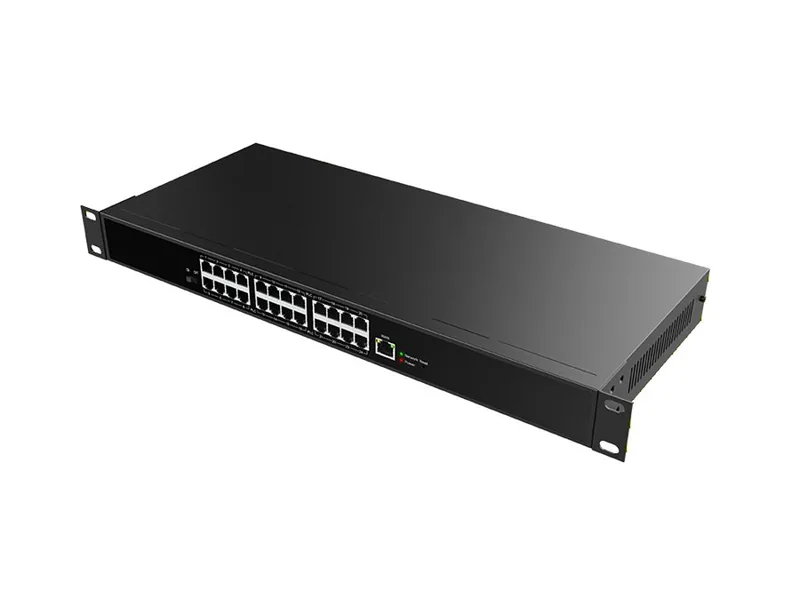
What a switch does
If the router is the office's gateway to the world, the switch is the hallway that connects all the rooms. To each port on the switch connects one network cable, which leads to a phone, a computer, a printer or a Wi-Fi point. One of the ports is connected to the router, and that is how all the devices reach the internet too.
Switches are sold in fixed sizes: 5 and 8 ports for a small office, 16, 24 and 48 ports for larger offices. When you need more, you connect several switches together. A 24- or 48-port switch is built to a standard width of 19 inches, so that it fits exactly into a network cabinet.
It's important to know that the switch itself doesn't "know" anything about phones or the phone system. It passes packets, fast and without errors. But when it goes down, all the stations connected to it go down together — which is why its place is in the cabinet, backed up with power and clearly labeled.
How it works: switch vs. hub
Before switches there were hubs. A hub simply copied every packet that reached it to all the ports, and every device had to check whether it was meant for it. This worked on a small network, but the more devices there were, the more they all "talked" at the same time, packets collided, and the network slowed down.
The switch is smarter. Every network card has a unique hardware ID (a MAC address). The switch learns, as it works, which address is behind which port, and records it in a table. When a packet arrives, it sends it only to the right port. This way two pairs of devices can pass information at the same time without interfering with each other.
For telephony, this means that the voice of a call in one room doesn't collide with a huge file being printed in another room. The switch keeps the two separate.
Types of switches
| Type | What it can do | Best for |
|---|---|---|
| Unmanaged | Only connects. Plug in and it works, no settings | A small office, a corner with a few stations |
| Smart | Some settings: separating networks, basic priorities | A medium office |
| Managed | Full control: VLAN, QoS, monitoring for each port | A large office, a call center, an institution with several buildings |
In addition to this division, switches differ in two important ways. The first is speed: today almost every new switch is gigabit (1,000 Mbps per port), and that is enough for a regular office. The second is PoE: a switch that delivers power through the cable, so the phone doesn't need a power adapter. In an office with IP phones, this is almost always the right type. See PoE.
Larger switches sometimes also have special ports for connecting with optical fiber (called SFP), used to connect floors or buildings, beyond 100 meters.
How many ports you need
The calculation is simple, but people tend to forget part of it:
- Count the desk phones.
- Add computers that are connected by cable.
- Add printers, Wi-Fi points, cameras, an attendance system, adapters for analog lines.
- Add a port for the router, and for connecting between switches if there are several.
- Add a margin of about a quarter — offices grow, and a new station shouldn't have to wait for a switch to be bought.
A tip that saves ports: most desktop IP phones have an extra port on the back, to which you can connect the computer. This way one station needs one network cable and one port on the switch, and the phone passes the computer's traffic along.
The downside: if the phone disconnects or restarts, the computer behind it also loses its network for a moment. At stations where the computer is critical, such as a cash register, it is sometimes better to have a separate cable for each.
How to choose a switch for telephony
- PoE with a sufficient power budget — for all the phones, Wi-Fi points and cameras together, plus a margin.
- Gigabit on all ports — especially when the computers connect through the phones.
- Cabinet mounting — a 19-inch switch with mounting ears.
- Noise and ventilation — large PoE switches include fans. In a small office with no separate room, it's worth checking how noisy they are.
- Warranty and updates — a switch sits in the cabinet for many years, and it's important that it has support behind it.
Real-life examples
A shop with three registers: a small 8-port PoE switch is enough for three phones, two computers, a printer and a Wi-Fi point.
An office of 20 employees in Bnei Brak: a 24-port PoE switch in the network cabinet, with the computers connected through the phones. Free ports remain for printers, cameras and new stations.
A yeshiva with a study hall and a dormitory: a main switch in the office, and another switch in the dormitory building, connected to it by cable or fiber. The phones in the dormitory station and the staff offices are connected, and every port is labeled by room.
Common mistakes
- A loop — a cable that connects two ports of the same switch, or two switches by two routes. The result: the entire network "chokes" within seconds. Managed switches can detect and block loops; simple switches usually can't.
- A small switch under the desk — a five-port switch that someone added to "split" a point. It works, until someone unplugs its power, and the whole station dies.
- A long chain of switches — switch after switch after switch. It's better for all the switches to connect to one central switch.
- A switch without PoE when there are phones — then every phone gets a power adapter, an outlet, and another cable on the desk.
- No labeling — on the day of a problem, nobody knows which port belongs to which room.
A planning example: which switch for an 18-employee office
The port count looks simple, but it's worth doing on paper before you buy. Take an accounting office with 18 employees, a reception desk, a meeting room and a small storeroom:
| What you connect | Quantity | Switch ports |
|---|---|---|
| IP phone + computer at the same station (computer through the phone) | 18 | 18 |
| Reception desk: switchboard phone with a key module + a separate computer | 1 | 2 |
| Conference phone in the meeting room | 1 | 1 |
| Network printers | 2 | 2 |
| Wi-Fi points | 3 | 3 |
| Cameras | 4 | 4 |
| Analog fax adapter | 1 | 1 |
| Connection to the router | 1 | 1 |
| Total today | 32 | |
| A margin of a quarter | 8 | |
| Required | 40 |
The conclusion: a 24-port switch isn't enough, even if today it "barely" fits. The choice is between one 48-port switch and two 24-port switches connected to each other. One switch is simpler to operate; two give partial backup, because if one goes down, half the office keeps working. In this office they chose one 48-port switch, because the cabinet is small and the room is air-conditioned.
The second calculation is the power budget: 18 simple phones at about 5 watts, a switchboard phone with a module at about 10 watts, a conference phone at about 8, three Wi-Fi points at about 12 and four cameras at about 6 watts. Together about 160 watts, and with a margin it's worth a switch with a budget of 250 watts or more. A 48-port switch with a 200-watt budget would have looked sufficient by the number of ports, and fails exactly on the power.
Unmanaged, smart or managed: a detailed comparison
The table in the previous section gives the direction. Here, item by item, is what you really get with each type:
| Unmanaged | Smart | Managed | |
|---|---|---|---|
| Settings interface | None | Browser, basic menus | Browser and a full command line |
| Network separation (VLAN) | No | Yes, basic | Yes, full |
| Voice priority (QoS) | No | Partial | Full |
| Loop detection and blocking | Usually not | Usually yes | Yes |
| Per-port monitoring (traffic, errors, PoE power) | Indicator lights only | Basic overview | Detailed, including alerts |
| Turn a port off and on remotely | No | Usually yes | Yes |
| Backup and restore of settings | Nothing to back up | Yes | Yes |
| Who manages it | No one | A technician, once at setup | Someone who knows networks |
The practical rule: an unmanaged switch fits when all you want is to plug things in and no one is available to maintain settings. A smart switch is the common middle ground in offices of 10 to 50 workstations: you can separate guests and cameras from the phones, and you can turn off a port remotely when a phone gets stuck. A managed switch pays off when there are several switches, several buildings, or someone responsible for the network who wants to see what is happening on it.
Note that advanced settings, such as network separation and priorities, are a matter for whoever manages the office network. A smart switch that no one configures behaves exactly like an unmanaged switch, and that is perfectly fine: the phones will work. The advantage is kept for the day it is needed.
When something doesn't work: diagnosing by the indicator lights
A switch has no screen, but it does have a language: the lights next to each port. Someone who can read them solves most problems without calling anyone:
| What you see | The likely reason | What to do |
|---|---|---|
| No light on the port, the phone is off | The cable is disconnected on one side, or a wall jack is broken | Try a different short cable in the cabinet; if there is still no light, the problem is in the line to the room |
| The light is on, the phone is on, but it shows "not registered" | The network is fine up to the switch; the problem is in the router or the internet | Check whether computers lost the internet too. See Router |
| The phone turns on, goes off, and turns on again | The PoE budget has run out, or a long, thin cable is losing power | Move it to a different port; if that fixes it, recount the power budget |
| All the lights blink fast together, the network is "choking" | A loop: a cable connecting two ports, sometimes through a small switch in a room | Unplug cables one by one until the blinking calms down; remove the splitter |
| The light shows the 100 Mbps color, not gigabit | One wire pair in the cable is not connected | The phone doesn't mind; a computer connected through it does. Check the line |
| All the phones on the same switch went down together | The switch itself: power, heat, or a fault | Touch it. Very hot? Ventilate it. Power it off and on, and check that it is on the UPS |
| Working, but the sound is choppy at only one desk | Usually the line to the desk, not the switch | See network line |
A rule that saves time: when the problem is shared by everyone connected to a particular switch, the problem is in the switch or in what is above it. When it is at a single desk, start with the short cable in the cabinet, which is the easiest to replace.
How it works with us at Kesher
At setup, we supply and install PoE switches sized to the number of workstations in the office, inside the communications cabinet. The phones get both network and power from them, over a single cable.
Each port on the switch is connected to the patch panel and labeled by room or desk. That way, when an employee says "my phone doesn't work," you know right away which port to go to.
The switch is connected to the UPS in the cabinet, so even during a short power outage the phones keep working. In the PBX control panel you can see, for each extension, whether it is registered and from which device. And if all the phones connected to the same switch went down together, you know to check the switch first.
FAQ
What is the difference between a switch and a router?
The switch connects the devices inside the office to each other. The router connects the office to the internet. An office usually has one router and one or more switches.
Does a small office need a managed switch?
Not necessarily. For a small office with a few phones, a good-quality unmanaged PoE switch is usually enough. A managed switch is worth it in larger offices, or when you want to put the phones on their own network.
Can I connect a computer through the phone?
Yes, most desk IP phones have an extra port for a computer. This saves a network cable and a switch port for each desk.
What is a hub, and why isn't it used?
A hub is the previous generation of the switch, and it sends every packet to every device. It causes congestion and collisions, so it has been almost entirely replaced by switches.
What is an SFP or Uplink port on a switch?
A special port for connecting between switches or for a fiber-optic connection, usually faster than the other ports. It is used when you connect a switch in another building or on another floor.
What happens to calls when the switch goes down?
The phones connected to it lose network and power, and their calls are disconnected. The cloud PBX keeps working, and you can route incoming calls to a mobile phone or voicemail until the switch is back.