What Is a Network Line?
A network cable is the cable that connects a device — a computer, an IP phone, a printer — to the office network. At its end is an RJ45 connector, and it runs inside the wall from a network point in the room to the switch in the network cabinet.
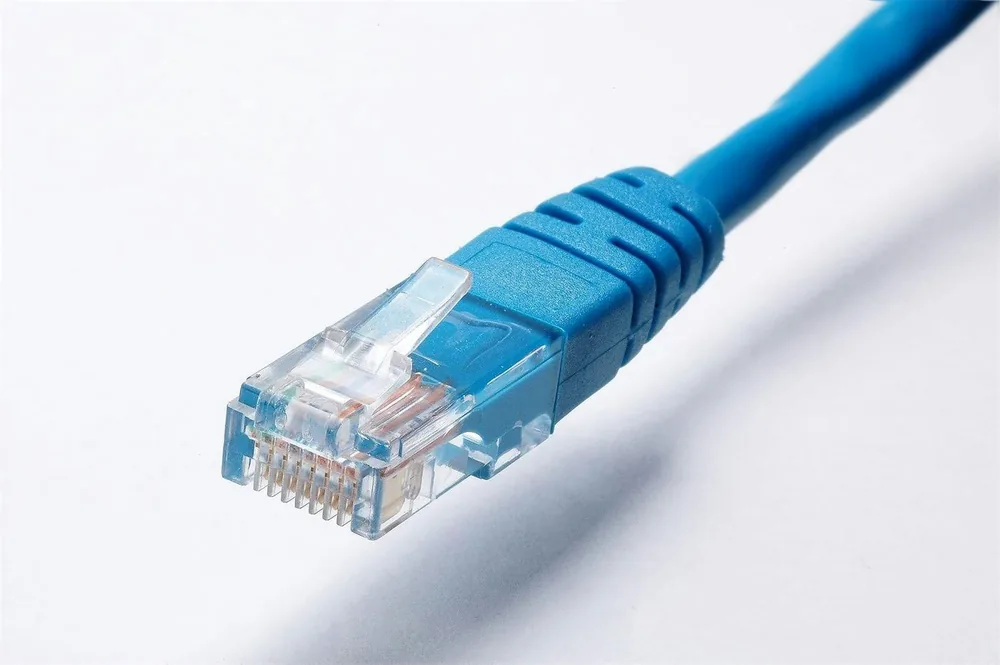
What a network line is
When people say "network line," they usually mean two things together: the cable itself, and the route it takes — from the wall jack next to the desk to the switch in the network cabinet. In professional terms this is called an Ethernet cable, after the local network standard that was born in the 1970s and still rules offices today.
Inside the cable are eight thin copper wires, twisted in pairs. The twisting is not decoration: it cancels electrical interference from outside and between the pairs, which is what lets data travel fast and clean over tens of meters. At the ends is a clear connector with a latch, RJ45, which looks like a regular phone connector, only wider.
The route: from the desk to the cabinet
In a well-organized building, a network line is not one long cable dangling from the desk to the cabinet. It is built from three parts:
- A short cable in the room (patch cord) — from the phone or computer to the network point, a small jack in the wall or in a raceway, next to the desk.
- The fixed cable — runs inside the wall, the ceiling or a raceway, from the network point to the network cabinet. This one is never moved.
- A patch panel in the cabinet — all the fixed cables arrive here, each to its own numbered socket. From there, another short cable connects each socket to a port on the switch.
Why not connect the cable from the wall straight to the switch? Because the fixed cable is made of solid wires that don't like movement. If you plug and unplug it again and again, it breaks. The patch panel fixes it in place once, and all the changes — moving a workstation, switching a port on the switch — are done with the short cables, in seconds.
Cable types: CAT5e, CAT6 and CAT6A
CAT is short for Category. Each category defines up to what frequency the cable works well, and from that, what speed it is suited for.
| Type | Typical speed | When it fits |
|---|---|---|
| CAT5e | Up to 1 gigabit, over the full 100 meters | Enough for phones and most offices. Common in existing buildings |
| CAT6 | 1 gigabit over the full length, and 10 gigabit over short distances | The common standard today for a new installation |
| CAT6A | 10 gigabit over the full 100 meters | Servers, links between switches, a building planned to last for decades |
For an IP phone, any of them is more than enough: a call uses less than one percent of the cable's capacity. The difference matters for computers and for the future. When walls are being opened anyway, the price difference between CAT5e and CAT6 is small compared to the labor cost, so in a new installation CAT6 is usually chosen.
Two things you can't see by eye, but that make a big difference: solid copper versus cheap cables of copper-clad aluminum (CCA), which heat up, break, and lose power over PoE; and shielding — a regular cable (UTP) suits an office, and a shielded cable (FTP/STP) is needed only near strong sources of interference, such as large motors or thick power lines.
The 100-meter limit
A copper network line has a fixed limit: about 100 meters from the switch to the device, including the short cables at both ends. The standard divides this into 90 meters of fixed cable plus about 10 meters for the short cables. Beyond that the signal weakens and errors begin: a slow network, disconnections, a phone that turns on and off.
In an ordinary office, 100 meters is a lot. But in a long building, a warehouse, or a yeshiva where the office is at one end and the dormitory at the other, it is easy to exceed. The solutions:
- A switch midway — another small cabinet, from which new lines of up to 100 meters go out.
- Optical fiber between buildings or floors — reaches distances of hundreds of meters and more, and is not affected by electrical interference or lightning.
A common mistake: measuring the distance in a straight line. The cable goes up to the ceiling, bypasses beams, comes down the wall and winds through raceways, so the actual length is much longer than the distance on the map.
Network line or Wi-Fi for phones
Wi-Fi is convenient, but for a desk phone it is the second choice. The air is a shared channel: all the devices in the same area share it, walls weaken the signal, and a microwave or a neighbor with a congested network can cause dropouts. For browsing it is barely noticeable; for a call it is heard immediately as choppy voice and swallowed words — see Latency and jitter.
| Network Cable | Wi-Fi | |
|---|---|---|
| Stability | High and constant | Varies by load and location |
| Power | Through the cable (PoE) | Needs an outlet and an adapter |
| Troubleshooting | Simple, by point number | Hard, depends on the air |
| Mobility | None | Yes |
| Best for | Fixed workstations, call center, reception | Mobiles, laptops, guests |
Our rule is simple: every fixed workstation — on a cable. Whoever moves around the office — a cordless phone, an app or a SIM extension.
How to run and label lines correctly
- Plan by workstation — go room by room, mark where each person sits, and add points for the printer, the Wi-Fi access point and the cameras. In a meeting room, a point for a conference phone is also worth having.
- Add spare capacity — at least one extra point in every room. Running a cable during installation is much cheaper than opening a wall later.
- Keep away from power — don't run network lines right beside power cables over long stretches, and not near fluorescent lights.
- Respect the bend radius — don't fold, don't tighten hard with cable ties, don't step on it. A crushed cable works "more or less" — and that's the worst case, because the fault shows up intermittently.
- Label both ends — the same number on the wall jack and on the patch panel socket, for example 2-07: floor 2, point 7.
- Test every line — with a cable tester, before closing the raceways.
- Document — a simple table: point number, room, workstation, switch port.
Common mistakes
- A cable dangling on the floor — gets run over by chairs, torn out during cleaning, and takes the workstation down.
- Small splitters under the desk — a five-port switch plugged into a regular outlet. When someone unplugs it, every workstation behind it goes down.
- Unlabeled cables — on the day of a fault, you try to guess which cable in the cabinet belongs to which room.
- An old, suspect cable — a connector with a broken latch that falls half out of the socket. Replace it; it costs a few shekels.
- Skimping on points — and then every new workstation requires opening the ceiling.
The actual installation, step by step: the route
The list in the previous chapter says what to do. Here is how it looks in the field, from the moment you mark a point on the wall until the raceway is closed.
1. Choose a route before buying cable. Three options in an ordinary office: a drop ceiling (the most convenient: the cables rest on a tray or hang from hooks, and come down the drywall to the point), a plastic raceway on the wall (cheap and accessible, suited to an existing office) or conduit inside the wall (in new construction or renovation). Measure the actual route, with its rises and drops, and not in a straight line.
2. Keep away from power. A network line running right next to a power cable for several meters picks up noise from it. The field rule: separate them by a few tens of centimeters when running in parallel, and if you must cross a power cable, cross it at a right angle and not along its length. In a shared raceway, make sure there is a divider. Stay away from fluorescent light fixtures and air conditioner motors too.
3. Don't fill a raceway to the brim. A conduit or raceway filled to about 40 percent of its cross-section leaves room to pull another cable in the future. A packed raceway crushes the cables inside and makes every addition harder.
4. Pull gently. A network cable doesn't tolerate being pulled with force. The standard sets a maximum tension of about 11 kg; in practice, if you need force, something is stuck. Use a pull string, and in long conduit also a dedicated lubricant. Never pull by twisting, or tie the cable to the pull string with a knot that crushes it.
5. Respect the bend radius. Rule of thumb: four times the cable's diameter, meaning about 2.5 to 3 cm. A sharp corner in the ceiling gets a soft arc, not a right angle. Leave about a meter of slack in the cabinet and about half a meter at the point, loosely coiled.
The actual installation, step by step: finishing and testing
6. Finish at a jack, not a plug. The fixed cable ends on both sides in a jack (a keystone in the wall, and a socket in the patch panel in the cabinet), not in an RJ45 plug crimped onto the cable. A plug on solid cable breaks after a few connections; a jack lasts for years. Crimp plugs only on short flexible cables, and it is better to buy those ready-made.
7. Keep the twist. When connecting the eight wires to the jack, untwist each pair only for the last centimeter, 13 mm at most. A longer untwist is the common reason for a line that runs at 100 megabit instead of gigabit, or for PoE that flickers. Wire order: the same scheme (T568A or T568B) at both ends, and throughout the office.
8. Test every line before closing up. A simple cable tester (wiremap) lights eight LEDs in order and reveals a missing wire, swapped wires or a short. This is the minimum, and it is done at every point. A certification tester also measures length, attenuation and interference between pairs, and issues a report for every line. In a new building or a large installation, it is worth requiring such a report from the contractor; in a small office a simple tester is enough.
9. A "live" test. After the tester, plug a phone into every point and make sure it powers on (if the switch is PoE), gets an address and registers with the PBX. A one-minute test call from every workstation reveals a noisy line that a simple tester doesn't see.
10. Document. A table with point number, room, workstation, patch panel socket, switch port, and the test date. One copy on the cabinet door, one copy in a file. This table is what separates a five-minute fault from a two-hour one.
CAT5e, CAT6 and CAT6A: what differs in the cable itself
The previous table dealt with speed. The physical differences are just as important, because they determine how easy the cable is to install, how much fits in a raceway, and how the cable behaves with PoE:
| CAT5e | CAT6 | CAT6A | |
|---|---|---|---|
| Operating frequency | Up to 100 MHz | Up to 250 MHz | Up to 500 MHz |
| Internal structure | Four twisted pairs | Usually with a plastic divider (cross) between the pairs | A divider, tighter twist, and sometimes shielding |
| Outer diameter | About 5 to 6 mm | About 6 to 7 mm | About 7 to 8 mm |
| Wire thickness | Thinner (24 AWG) | Slightly thicker (23 AWG) | Slightly thicker (23 AWG) |
| Flexibility and installation | The easiest | A bit stiffer | Stiff, needs a large bend radius |
| How many fit in a raceway | The most | About 20 percent fewer | About 40 percent fewer |
| With PoE | Enough for phones | Less heating, suited to PoE+ | Best for high power levels |
What this means in practice: CAT6's thicker wires lose less power along the way, so for a Wi-Fi access point at the end of an 80-meter line, CAT6 is clearly better. The outer diameter is what surprises installers: a conduit that comfortably held ten CAT5e cables holds seven or eight CAT6, and raceway planning has to take that into account. CAT6A is worthwhile almost only for links between switches or for servers, and in an ordinary office it only makes installation harder, with no benefit for phones.
When something doesn't work: symptom, cause, fix
| What happens | The likely reason | What to do |
|---|---|---|
| No link at all, the light on the switch is off | A wire that didn't lock into the jack, a cut cable, or a wall jack that was never connected | Cable tester on the fixed line; the problem is usually at one of the ends |
| Works, but only at 100 megabit | One of the four pairs is open. Gigabit needs all eight wires, 100 megabit makes do with four | The tester will show which pair is missing; re-terminate the jack |
| Intermittent disconnections, mainly when the desk is moved | A crushed cable, a staple, a tight cable tie, or a plug with a broken latch | Replace the short cable first; if it continues, look for the crushed spot along the route |
| Noise or humming on calls, only at one workstation | The line runs right beside a power cable or a light fixture | Move the line away, or switch to a shielded cable in that section |
| The line passed a simple tester, but the computer is slow | Split pairs: the wires are connected "correctly" but not according to the twisted pairs | A simple tester doesn't detect this; re-terminate to T568B at both ends |
| A PoE phone flickers at the end of a long line | A CCA cable or thin wires, which lose power | Replace the line with solid copper. See PoE |
The right order of diagnosis goes from cheapest to most expensive: first the short cable at the desk, then the short cable in the cabinet, then move the phone to a nearby point. Only if those three didn't solve it do you open up the fixed line.
Installation mistakes we see again and again
- Staples. A cable fastened to the wall or a wooden panel with staples from a staple gun. Every staple is a crush point, and one of them will damage a wire. Use clips or a raceway.
- Tight cable ties. A bundle pulled with a tie until the cables change shape. The twist inside is damaged, and the line works "more or less." Use hook-and-loop straps, without force.
- Right beside power. A network line pulled through the electrical raceway because "it's already there." The noise gets into the calls. Use a separate route or a divider.
- Tight loops of slack. Five meters of excess coiled to the diameter of a palm and shoved behind the jack. Coil it loosely, to the diameter of a plate.
- Two wiring schemes. One end T568A and the other T568B: the line "works" in some cases and fails in others, and nobody understands why. One scheme throughout the building.
- Hanging on the ceiling wires. Cables hung on the metal wires that hold up a drop ceiling. It looks convenient, until someone replaces a tile and the cable is stretched and torn. Use a tray or dedicated hooks.
- A splice in the middle. Two short cables joined in the ceiling with a small coupler to save money. Every such joint is a hidden point of failure. A fixed line is one continuous cable.
How it works with us at Kesher
When we set up an office, we plan the network points by workstation: we walk through the office, understand who sits where, and where the phones, computers and printers will go. From there we run a cable from each workstation to the network cabinet.
In the cabinet, all the cables arrive at a patch panel, and from there to a PoE switch. This way every phone gets network and power over one cable, with no adapter on the desk. The phones we supply arrive preconfigured, and the moment they are plugged into a point, they register with the PBX.
Every point is labeled at both ends — at the wall and at the patch panel — so any fault is easy to locate. And when diagnosis is needed, the PBX control panel shows for each extension whether it is registered and from which device. An extension that drops by itself while all the others work almost always points to the cable or the point of that workstation itself.
And for employees who don't sit at a fixed desk there are solutions without a cable: a cordless phone, an app, or a SIM extension that rings on a mobile.
FAQ
What is the difference between CAT5e and CAT6?
Both are enough for phones and for 1 gigabit speeds. CAT6 is better suited to higher speeds and the future, so it is the usual choice in a new installation.
What is the maximum length of a network cable?
About 100 meters from the switch to the device, including the short cables. For a longer distance, add a switch midway or move to optical fiber.
Is it better to connect a phone by cable or by Wi-Fi?
For a fixed workstation — always by cable. It is more stable, it also carries power, and faults are easy to diagnose. Wi-Fi suits mobile devices.
What is a patch panel?
A connection board in the network cabinet, where all the cables from the walls arrive, each to a numbered socket. Short cables connect from it to the switch, so any change is made without touching the cables in the wall.
What is the difference between a simple cable tester and a certification tester?
A simple tester confirms that the eight wires are connected in the right order and there is no short. A certification tester also measures length, attenuation and interference, and issues a report for every line. For a small office a simple one is enough; in a large installation it is worth requiring a certification report from the contractor.
What are T568A and T568B?
Two schemes for the order of the eight wires in the connector. Both are valid, but you must use the same scheme at both ends of the line and throughout the building. In Israel T568B is more common.
Can a network line be extended with a coupler?
You can, but it's not advisable on a fixed line: every joint in the middle is a point of failure hidden in the ceiling. If you must, use a quality double Keystone coupler and document where it is.